How to Find Out What Subscriptions I Have
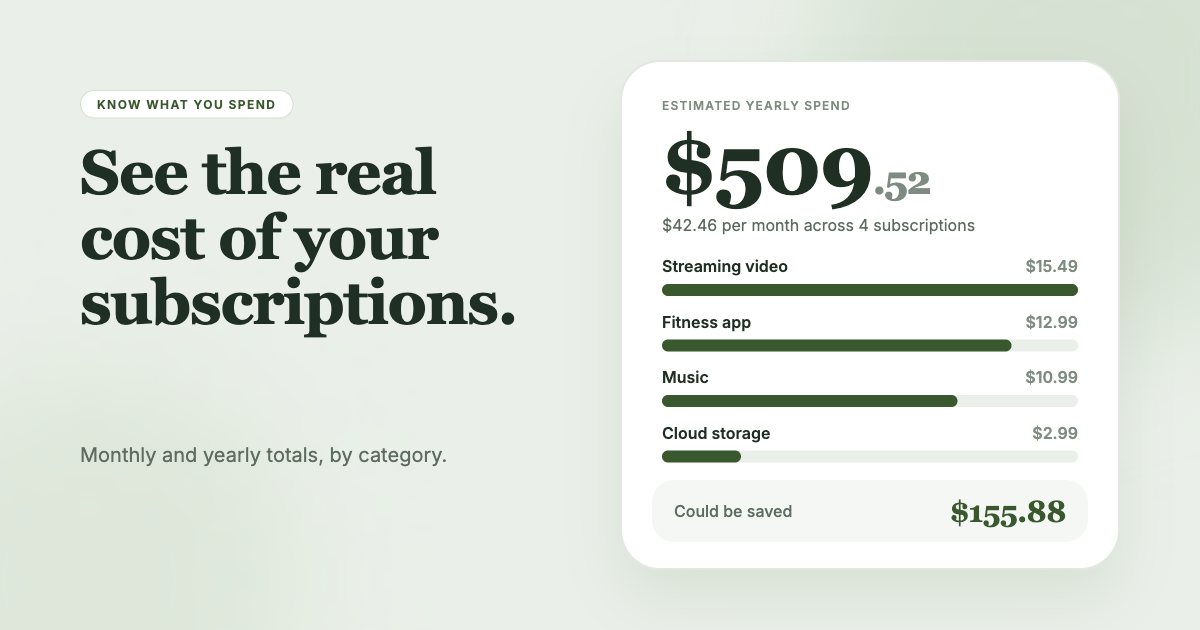
Quick answer
Look in three places and combine the results: your phone's app store subscription list, your email inbox for receipts, and your card or bank statements for recurring charges. The app stores catch the subscriptions bought through Apple or Google. Email catches most of the rest. Statements catch whatever neither of those showed you.
Set aside 30 minutes and a notes app or spreadsheet. Write down each service, the price, how often it bills, and the date of the next charge.
Step 1: Check your phone's subscription list
Apple and Google each keep a list of everything billed through them.
iPhone or iPad
- Open Settings and tap your name.
- Tap Subscriptions.
Tap a subscription to manage or cancel it.
Mac
- Open the App Store and click your name at the bottom of the sidebar.
- Click your name again on the page that appears, then click Subscriptions.
Any device with a browser
Go to account.apple.com, sign in, and open the Subscriptions section (Apple's instructions).
Android or Google Play
Open the subscriptions page at play.google.com/store/account/subscriptions while signed in to the Google Account you use for purchases (Google's instructions). If you have more than one Google Account, check each one. Subscriptions sit under the account that bought them, not under your phone.
Step 2: Search your email
Subscriptions bought on a company's own website do not appear in an app store list. They do send receipts.
Search your inbox for words like receipt, invoice, renewal, trial and billing. To find Apple charges, Apple suggests searching for the phrases receipt from Apple or invoice from Apple (Apple Support). Search every email address you use, including an old one you kept for sign-ups.
Sort by sender. Most services send a receipt each billing period, so a company that appears every month or once a year is a subscription. Add each one to your list.
Free trials matter here. A trial confirmation email is often the only record that a paid plan starts soon. Apple notes that if you do not want a trial to renew, you need to cancel at least 24 hours before it ends.
Step 3: Read your card and bank statements
Open the last three months of statements for every card and bank account you pay with. Highlight any charge from the same merchant that shows up at a regular interval. Three months catches monthly charges. For annual charges, go back 12 months if your bank lets you.
Merchant names on statements can look nothing like the service. Google Play charges, for example, appear as names beginning with "GOOGLE*" (Google Play Help). If you cannot match a charge to a service, search your email for the amount or for the first word of the merchant name. Our guide to identifying unknown charges covers that in more detail.
Step 4: Check the less obvious places
Some subscriptions hide where you would not think to look.
- Family accounts. A subscription may be billed to a relative's Apple Account. Apple says you cannot cancel it for them, so ask them to do it (Apple Support).
- Payment services. PayPal and similar services can hold recurring payment permissions you set up years ago. Check the settings of each service you use to pay online.
- Google payments. Google Play orders show under Payments & subscriptions, then Budget & history in the Play Store app. Other Google subscriptions show at payments.google.com under Subscriptions & services (Google Play Help).
- Retailer memberships. Shopping memberships bill without much notice. In 2025 the FTC estimated that about 35 million consumers were affected by unwanted Prime enrollment or deferred cancellation, according to its settlement announcement with Amazon. That says nothing about your account, but it is a reason to look at the memberships tied to your shopping accounts.
- Work and school. Software you bought on a personal card for a job or a class still renews on that card.
Step 5: Put everything in one list
Create a table with these columns: service, price, billing period, next charge date, where it is billed (App Store, Google Play, card, PayPal), and whether you used it in the last month.
Convert annual prices into monthly ones by dividing by 12. Then add the column. The total is usually higher than people expect, because small charges add up and annual renewals are easy to forget.
What to do with the list
For each line, ask whether you used it in the past 30 days. If not, cancel it. If you are unsure, give it a decision date a week away and set a calendar reminder.
When you cancel, do it where you subscribed. Deleting an app does not stop billing. Google states that uninstalling an app does not cancel a subscription, and you keep access until the paid period ends.
Check your next statement to confirm the charge stopped. If a service keeps billing after you canceled, contact the company first, then your card issuer.
Keeping the list current
A one-time list goes stale. New trials start, prices change, and annual renewals come around. Repeat the email and statement checks every few months, or use a tool that watches for you.
SubSweeper reads your email receipts (read-only) and builds a dashboard of active subscriptions, free trials and upcoming renewals, with a monthly total and categories. It can send reminders before a charge and helps you cancel. If you would rather not repeat the inbox search yourself, it does that part.