How to Find All Your Subscriptions in One Sweep
Quick answer
No single screen lists everything you pay for monthly. Subscriptions are billed through app stores, cards, bank accounts and payment services, so you need to check each. Work through seven places in order: Apple, Google, email, card statements, bank statements, payment services and family or shared accounts. One pass takes about an hour.
1. Apple subscriptions
- iPhone, iPad: Settings, tap your name, tap Subscriptions.
- Mac: open the App Store, click your name at the bottom of the sidebar, click your name again, then click Subscriptions.
- Web: sign in at account.apple.com and open Subscriptions.
Write down the price and renewal date of each active one (Apple Support).
2. Google subscriptions
Open play.google.com/store/account/subscriptions in the Google Account that made the purchases. If you use more than one Google Account, repeat for each.
Google Play orders also appear in your order history. In the Play Store app, tap your profile icon, then Payments & subscriptions, then Budget & history. On payments.google.com, the Subscriptions & services section lists subscriptions that sit outside Play (Google Play Help).
3. Your email
Subscriptions bought on a company website show up in your inbox, not in an app store. Search for these words: receipt, invoice, renewal, trial, billing, subscription. Search every address you use.
Apple suggests searching for receipt from Apple and invoice from Apple when you are chasing an Apple charge. Scan the senders. A company that appears monthly or yearly is billing you on a schedule.
4. Credit and debit card statements
Open statements for each card you use online. Look at the last three months and mark any merchant that repeats at a regular interval. For annual charges, look back 12 months if your issuer lets you.
Merchant names can be unhelpful. Google Play charges, for instance, show up as names starting with GOOGLE, such as GOOGLEBooks (Google Play Help). When a name means nothing to you, search your email for the amount. If that fails, read our guide to unknown charges on a credit card.
5. Bank account statements
Bank accounts carry subscriptions paid by direct debit, such as gym memberships, insurance, phone plans and utilities. Search your online banking by merchant name and sort by date. Repeat payments of the same amount on the same day of the month are usually subscriptions or bills.
6. Payment services
PayPal and similar services can hold standing permission for a merchant to bill you. Open the settings of each payment service you use and look for a section covering automatic payments or subscriptions. Menu names differ by service, and they change, so check the service's current help pages.
7. Family and shared accounts
A subscription may be billed to someone else's account. Apple says that if a receipt shows a family member's Apple Account, only that person can cancel it (Apple Support). Apple also notes that if there is no Apple receipt, the subscription may be billed by another company, so check your bank or card statement.
If you share a card with a partner or a business, include their sign-ups in your sweep.
A note on shared cards
If a partner, a roommate or a business shares one of your cards, split the statement by who made each purchase before you decide what to cancel. Ask the other person to run the same sweep on their own phone and email. A subscription you do not use can still be one that someone in your household relies on, so a quick message before canceling saves an awkward conversation later.
Build the master list
Create a table with these columns:
| Service | Price | Billing period | Next charge | Billed through | Used last month? |
|---|---|---|---|---|---|
Fill one row per subscription. Convert annual prices to monthly by dividing by 12, then total the price column. Here is an example with made-up numbers: four monthly plans at $8, $12, $15 and $20, plus a $96 annual plan, gives $55 plus $8, or $63 a month. Your own total is what matters.
Check for gaps
Compare your list with your statements one more time. Every recurring charge on a statement should map to a row. Any charge you cannot match is either a subscription you missed or a charge you should dispute.
If you do not recognize a charge from Google Play, Google lays out a reporting process. For credit, debit or PayPal charges within 120 days, it points to an unauthorized transactions form at payments.google.com (Google Play Help).
Free trials on the list
Add any trial that is running now. Note its end date. Apple says to cancel at least 24 hours before the trial ends if you do not want it to renew. A trial usually has no charge yet, so it will not show up on a statement until it is too late.
After the sweep
Once you have the list, decide on each line. Cancel in the place you signed up, since removing the app does not stop billing. The Google Play help page says you keep access until the paid period ends. Then check your next statement for the stop.
To keep the list from going stale, set a quarterly reminder to repeat the sweep.
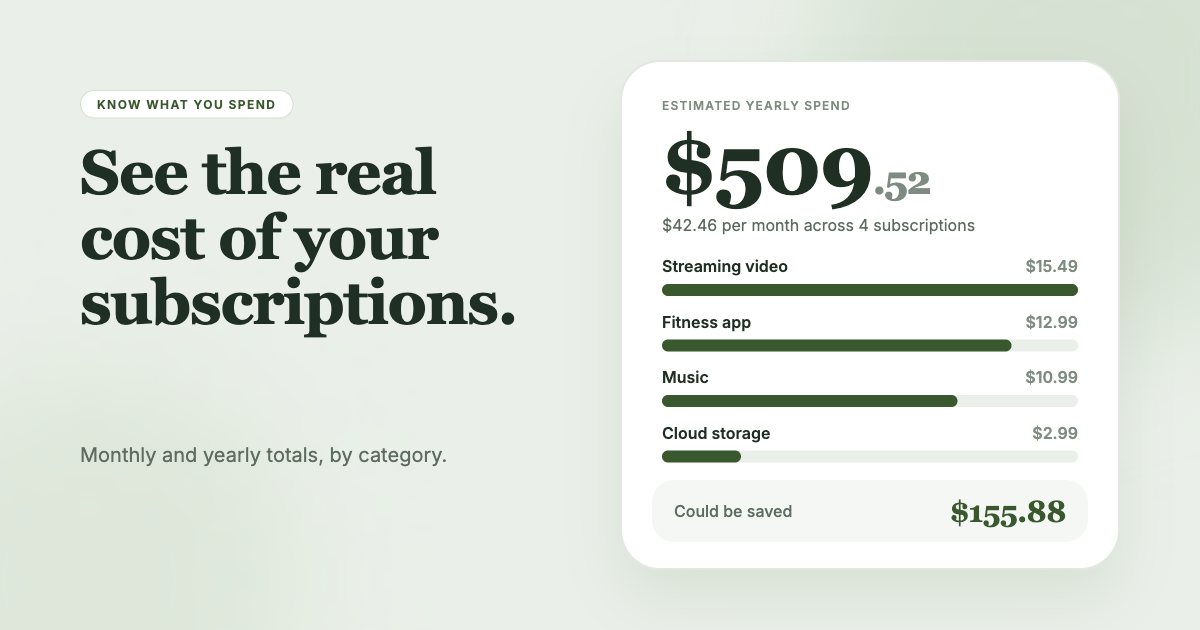
SubSweeper can run the email part for you. It scans your email receipts (read-only) and shows active subscriptions, free trials and upcoming renewals in one dashboard, with a monthly total and categories. It can also remind you before a charge and help you cancel.