How to Find and Manage Subscriptions on iPhone
Quick answer
Open Settings, tap your name, and tap Subscriptions. That screen lists the subscriptions on your Apple Account, and tapping one opens its details, including the Cancel Subscription button. For charges you can't place, open the App Store, tap your photo or initials, tap Apps & Purchase History, then Purchase History.
Two things send people to the wrong place. Subscriptions are tied to an Apple Account, so a second account has its own list. And only subscriptions billed by Apple appear there. Anything billed by another company stays invisible to your iPhone.
Step 1: Open the Subscriptions list
- Open Settings.
- Tap your name at the top.
- Tap Subscriptions.
Tap any entry to open it. Apple's cancel page says that if an entry has no Cancel button, or shows an expiration message in red text, it is already canceled. So the list can contain subscriptions that are over, and the red text is how you tell them apart from live ones.
Open each entry rather than judging by the name in the list. Apple says it covers both subscriptions from Apple, such as Apple Music, and subscriptions you bought with an app from the App Store.
Step 2: Check purchase history for charges that don't match
The Subscriptions screen answers "what is active." Purchase history answers "what did I pay for." On an iPhone, per Apple's purchase history page:
- In the App Store, tap your photo or initials, or the My Account button, and sign in.
- Tap Apps & Purchase History.
- Tap Purchase History.
- To see older items, tap Last 90 days at the top and choose another filter.
Apple says subscriptions appear in purchase history and that it may group several purchases and subscriptions into one bill. If your statement total does not match any single subscription, grouping is the first thing to check. Apple's billing page says you can look at your purchase history or the emailed receipt to see what a combined charge covers.
On a computer, go to reportaproblem.apple.com, sign in, and you can see the same purchases. If you know the amount but not the item, Apple says to search for the amount.
Step 3: Look in the other places a subscription can hide
If you can't find the subscription, Apple's suggested route is your inbox:
- Search for receipt from Apple or invoice from Apple.
- Check which Apple Account is on the receipt.
- If it's another account of yours, sign in to that account.
- If it's a family member's account, only that person can cancel it.
If a family member's purchases are the issue and you are the Family organizer with Purchase Sharing turned on, Apple says you can sign in at reportaproblem.apple.com and select a family member from the Apple Account button to see their purchases.
When there is no receipt from Apple, the subscription probably isn't Apple's. Apple says to check your bank or credit card statement to find which company bills you, then contact that company. The same goes for subscriptions that came through a wireless carrier or another provider. Apple says those are managed with the provider.
Step 4: Manage what you find
Apple's cancel page describes cancellation as the management action on this screen: tap the subscription, then tap Cancel Subscription, scrolling down if you don't see the button. For a free trial, Apple says to cancel at least 24 hours before it ends if you don't want it to renew.
If a charge turns out to be a subscription you don't want, Apple's page on unfamiliar charges says to cancel it using the standard cancellation steps. If you still don't recognize a charge after checking, Apple's only listed next step is Apple Support.
Manage from another device
The iPhone isn't the only place to see the list. Apple's cancel page gives the same list on other devices:
- iPad: the same Settings steps as the iPhone.
- Mac: open the App Store, click your name at the bottom of the sidebar, and click Subscriptions.
- Web: sign in at account.apple.com and open Subscriptions.
That helps when your phone is out of reach or you want to review everything on a larger screen.
A quick routine
You don't need a long audit. This takes about five minutes:
- Open Settings > your name > Subscriptions and scan for anything you don't recognize.
- Open the entries that look live and note which ones you used this month.
- Cancel one you haven't used.
- Open Purchase History once to see whether anything is billed that isn't on the list.
- Repeat on any second Apple Account.
If you share card details with a family member, Apple suggests asking whether they made the purchase. Their Apple Account's subscriptions will not be on your list.
Why the list isn't the whole picture
The Subscriptions screen only covers what Apple bills. Streaming services paid through a website, a PayPal agreement, a Google Play plan on an Android tablet and an Amazon membership all live somewhere else. A recurring charge from any of them is invisible to your iPhone settings.
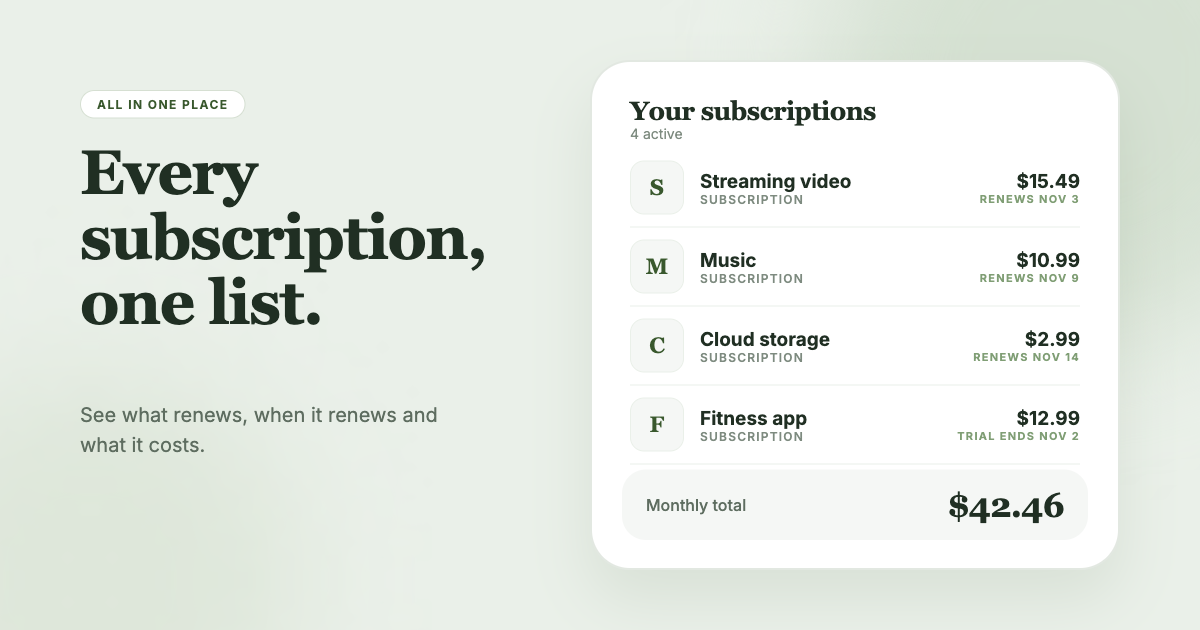
SubSweeper looks at the one place all of them leave a trace: your email receipts. It reads them (read-only) and shows active subscriptions, free trials and upcoming renewals in one dashboard, with a monthly total and reminders before charges. When you spot something that isn't Apple's, it helps you cancel it.