Amazon Subscribe and Save: How to Cancel or Skip
Quick answer
Go to Your Subscribe & Save Items, open the Subscriptions tab, select the product, choose Cancel subscription, and confirm with Cancel my subscription. Do it before the Last day to update this order date shown for that item. After that date, the next shipment may already be on its way.
Subscribe & Save is separate from Amazon Prime and from the digital subscriptions in your Amazon account, so canceling Prime does not touch it. Each product you subscribed to is its own subscription.
Cancel a Subscribe & Save subscription
These are the steps from Amazon's cancel page:
- Go to Your Subscribe & Save Items, which sits under Your Account.
- Select the Subscriptions tab.
- Select the product image, or select Edit, to open the subscription details.
- Select Cancel subscription.
- Optional: pick a cancellation reason.
- Select Cancel my subscription.
If you subscribed to five items, you have five subscriptions and repeat the steps for each one.
The deadline that matters
Amazon's note on this page is the part people miss. For a cancellation to take effect on your upcoming delivery, you have to make the change before the date labeled Last day to update this order. You find that date next to each subscription on the Subscribe & Save page.
Once an order has entered the shipping process, it can no longer be canceled. In that case Amazon cancels the next shipment on the schedule, and the one already in motion still arrives. If you want to stop a box that has shipped, Amazon says to request a return or a stoppage of shipment, depending on the situation.
So the order of operations is: check the date first, then cancel. Looking at the date takes ten seconds and tells you whether to expect a box.
Skip one delivery instead
If you still use the product but have too much of it, skipping keeps the subscription alive. Amazon's skip page covers two cases.
To skip one item in your next delivery:
- Go to Your Subscribe & Save Items.
- Hover over the subscription for the item you want to change.
- Select Skip.
- Confirm Skip until next delivery.
To skip an entire delivery, go to Manage your Deliveries, select Skip All, and confirm the items you want to skip until next delivery.
Change the schedule or quantity
Slower deliveries are often a better fix than canceling. On Amazon's schedule page, the path is Your Subscribe & Save Items, then the Subscriptions tab, then the product, then Change your schedule or quantity. You can change the frequency, the next delivery date, or the quantity. Select Confirm, and the change takes effect on your next delivery.
Things worth knowing about the program
Amazon's Subscribe & Save overview lists a few facts that affect whether to keep an item:
- You can cancel at any time.
- Eligible products often come at a discounted price, and the discount may change at any time. If an item shipped before a change, you get the old discount on that order, and any new discount applies to future orders.
- The price can move between deliveries, but Amazon says it will not be higher than the price in your reminder email.
- Non-Prime customers may pay shipping on the first delivery.
- You can't pay for Subscribe & Save with an EBT card.
The reminder email matters more than it looks. It shows the price for the upcoming order and is the natural moment to decide whether to keep, skip or cancel that item.
What Amazon's terms say about billing and cancellation
The Subscribe & Save terms add details that decide how much a late cancellation costs:
- Your subscription continues, and your payment method is charged, until you cancel.
- Each charge is submitted on the date the item ships, not on the date of the reminder email.
- The Manage Your Deliveries page shows the last date you can cancel or skip a delivery to avoid being charged for it.
- Amazon may change the price of a subscription at any time, and price changes appear on Manage Your Deliveries.
- If the payment method on the subscription fails, you authorize Amazon to update the subscription with another payment method in your account and charge that one.
- If you cancel and later reactivate an item, the discount may differ from the one you had before.
The payment-method clause is the one to check against your account. A card you removed from a subscription can still be replaced by another saved card, so look at what is saved under your payment settings.
If you can't find the subscription
Check that you are signed in to the Amazon account that placed the order. If a family member or a work account bought the item, the subscription lives in their account. Search your email for Subscribe & Save reminder messages from Amazon to see which address received them.
Subscribe & Save charges are product purchases, which makes them easy to confuse with one-time orders on a statement. Amazon's unknown charges page lists the descriptors that Amazon purchases use, such as AMZN Mktp US *A1B2C3D4E, to help you match a statement line to an order.
Keeping an eye on repeat deliveries
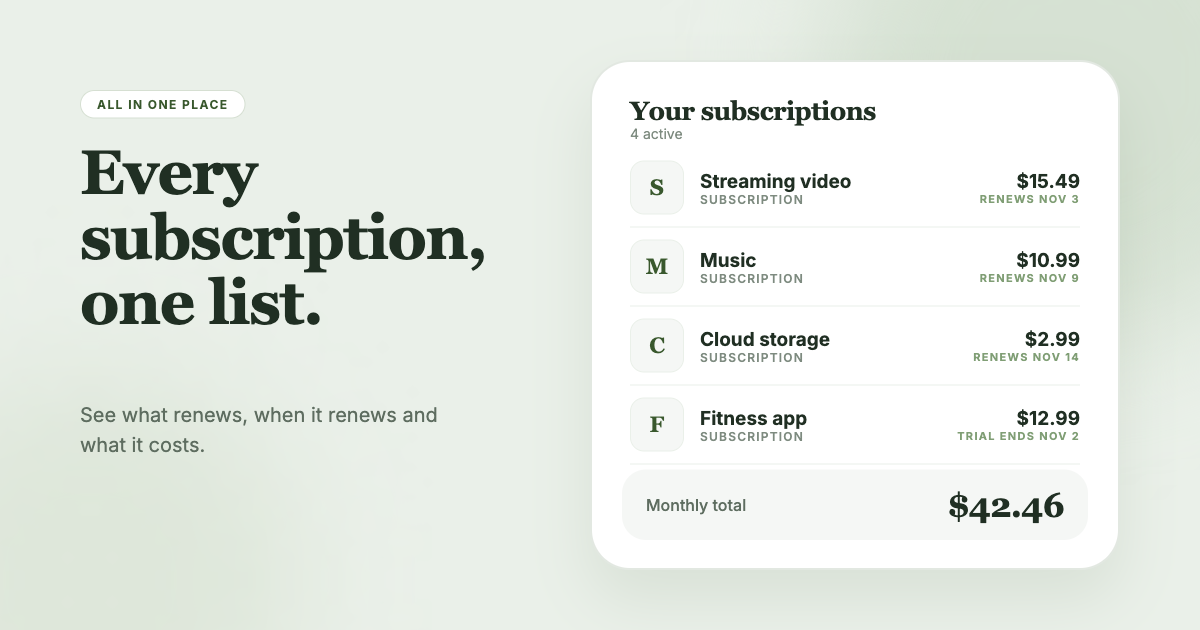
Subscribe & Save lines are small, so they hide well. A $12 box every month is easy to ignore until you add up a year of them. SubSweeper scans your email receipts (read-only) and puts active subscriptions, free trials and upcoming renewals in one dashboard, with a monthly total and reminders before charges. That covers recurring buys like these next to your streaming and app subscriptions, and it helps you cancel what you no longer want.
Official sources
- amazon.com/gp/help/customer/display.html?nodeId=GWFU7NECYFLW6M6U
- amazon.com/gp/help/customer/display.html?nodeId=GQBVD8QMLXXV5GLV
- amazon.com/gp/help/customer/display.html?nodeId=G7BT585FJ235D6DV
- amazon.com/gp/help/customer/display.html?nodeId=GTDCCN7TDSSB52MR
- amazon.com/gp/help/customer/display.html?nodeId=GJ2LTMLFGGMH67M7