How to Cancel Amazon Subscriptions and Prime Membership
Quick answer
Open Amazon's Memberships and Subscriptions page. It lists your active, canceled and expired subscriptions with the renewal date and price of each. Pick the one you want to stop, choose Manage Subscription, and cancel it. Prime itself is canceled from Amazon's Cancel Your Prime Membership page, and Subscribe & Save has its own page.
Amazon runs several kinds of recurring charges under one login, so canceling an Amazon subscription can mean four different things: a digital subscription, Prime, Subscribe & Save, or an add-on billed through Prime Video. The sections below take them one at a time.
Cancel a digital subscription (Kindle, Prime Video channels, and similar)
Amazon's help page for managing subscriptions gives these steps:
- Go to Your Memberships and Subscriptions.
- Find the subscription you want to cancel.
- Select Manage Subscription.
- Under Advanced Controls, select Cancel Subscription.
Some digital subscriptions also have an Auto-Renew switch on the same screen. Turning it off stops the recurring charge before the renewal date. Amazon says this option exists for select digital subscriptions only, so you may not see it on every item. Amazon's auto-renewal page explains that unless you cancel or turn off auto-renewal before a charge, it renews and bills a payment method on file.
The same Manage Subscription screen lets you change the payment method (select Change next to it), and for physical subscriptions, the shipping details.
Work out which charge it is first
Before you cancel anything, match the charge on your statement to the right Amazon product. A monthly charge with a digital-services descriptor usually points to a Kindle, Prime Video channel or app subscription, and a charge with a Prime descriptor points to the membership itself. Amazon notes that digital service payments such as Prime Video channels and Kindle Unlimited are billed monthly. Amazon states that Prime Video subscriptions such as Paramount+ continue after Prime ends, so a canceled membership does not stop a channel billed alongside it.
Cancel Amazon Prime
Amazon's Cancel Your Amazon Prime Membership page sends you to a Cancel Your Prime Membership link and tells you to follow the prompts. If you get stuck, it suggests going to the Customer Service homepage, choosing Something else under Can't find what you're looking for, and then selecting I need help with something else.
Three details from that page matter before you click:
- Refund. Paid members who haven't used their benefits are eligible for a full refund of the current membership period. Amazon says it processes the refund in three to five business days.
- Prime Video add-ons keep going. Subscriptions on Prime Video, such as Paramount+, continue after your Prime membership ends. Cancel those separately in Memberships and Subscriptions.
- Billed through someone else. If you signed up for Prime through Google Play on Android, cancel it through Google Play's subscription settings. If Prime came through another company's service, that company handles the cancellation.
Amazon's membership fee page lists Prime at $14.99 per month or $139 per year. Check it before you act, since Amazon can change those numbers.
Pause Prime instead of canceling
If you only want a break, Amazon lets some members pause. Per Amazon's pause page, you do it from the Membership Management section of Prime Central:
- Monthly plan members can pause for one month, and the membership resumes on its own.
- Monthly or annual members can pause for up to one year and resume by hand. A membership paused for more than 365 consecutive days is canceled automatically.
The pause starts after the current billing cycle, and you lose Prime benefits while paused. You can't pause if you joined through a third party, are on a free trial or discounted offer, or have a Prime Video only, Prime Business, Student, or Prime Shipping only plan.
Cancel Subscribe & Save
Subscribe & Save covers repeat deliveries of physical products and is managed in Your Subscribe & Save Items, apart from the digital subscriptions above. Open Your Subscribe & Save Items, select the Subscriptions tab, open the product, and select Cancel subscription. Amazon's cancel page also explains the deadline for stopping the next shipment.
Find a charge you don't recognize
Amazon's unknown charges page lists the names that appear on bank statements. Prime charges show up as descriptors like AMAZON PRIME*A1B2C3D4E amzn.com/bill, and digital services show up as Amazon Digital Svcs amzn.com/bill. Amazon says an unknown charge is most often a Prime payment, a digital service payment, an Amazon Pay transaction, or a bank authorization, which is not an actual charge. For digital services such as a Prime Video channel or Kindle Unlimited, Amazon points you to Your Digital Orders.
What to do after you cancel
Open Memberships and Subscriptions again and look at where the item sits. Amazon splits the list into active, canceled and expired, so a canceled subscription should no longer be in the active group. If it still is, repeat the steps before the renewal date shown next to it.
Keeping track across Amazon and everything else
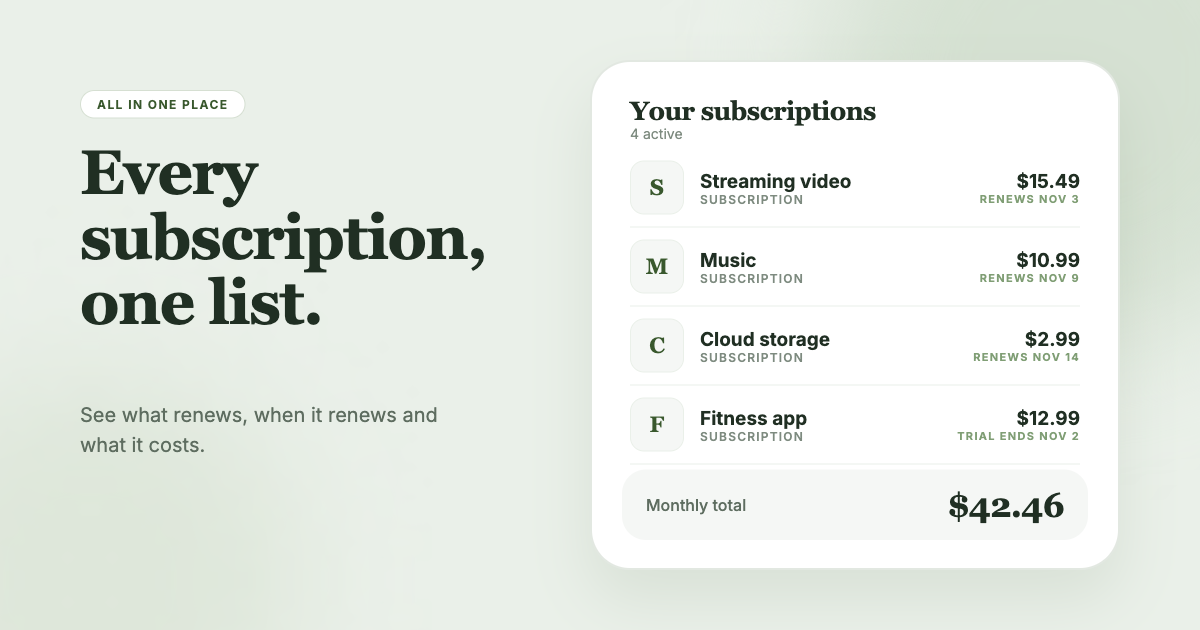
Amazon is one account among many that bill you. SubSweeper scans your email receipts (read-only) and puts active subscriptions, free trials and upcoming renewals in one dashboard, so an Amazon digital charge sits next to your Apple, Google and PayPal ones. It sends reminders before charges, shows your monthly total, and helps you cancel.
Official sources
- amazon.com/gp/help/customer/display.html?nodeId=GTJQ7QZY7QL2HK4Y
- amazon.com/gp/help/customer/display.html?nodeId=T2MCS8KrbcPy1WK9aL
- amazon.com/gp/help/customer/display.html?nodeId=GEG9TDENGGVMB453
- amazon.com/gp/help/customer/display.html?nodeId=TIUJpcDboKDY6n03uq
- amazon.com/gp/help/customer/display.html?nodeId=GSNBBJP63SM65UDB
- amazon.com/gp/help/customer/display.html?nodeId=G34EUPKVMYFW8N2U