Subscription Tracker Notion Template: Build Your Own
Quick answer
You can build a subscription tracker in Notion in about 15 minutes with one database, eight properties, and two formulas. Notion's help pages describe every piece you need: a database, property types for price and date, formulas, and table, calendar, and chart views. This guide gives you the setup to copy instead of a file to import.
Step 1: Create the database
Notion's help center says to create a new page, then under Get started with, select Table. You can also open an existing page and type /database. A new database opens in Table view, and each row is its own page, so you can store notes and screenshots inside any subscription.
Name the database Subscriptions.
Step 2: Add the properties
Notion lists the property types available. Use these.
| Property name | Type | Use |
|---|---|---|
| Name | Title (default) | Service name |
| Price | Number | Set to display as currency |
| Billing | Select | Monthly or Yearly |
| Category | Select | Streaming, software, fitness, news, other |
| Next charge | Date | The next billing date |
| Paid with | Select | Card name, PayPal, Apple, Google Play |
| Cancel link | URL | Page where you cancel |
| Status | Status | Active, Trial, Canceled |
Notion's property documentation says Number can display as currency, Select picks one tag from a list, Date stores a single date or range, URL stores a link, and Status tracks progress with tags grouped as To-do, In Progress, or Complete. Map your own status names onto those groups, for example Trial under In Progress and Canceled under Complete.
Step 3: Add the two formulas
Notion's formula guide says you refer to a property with prop, followed by the property name in parentheses and double quotation marks. Each formula below is written out in words, so type the property names exactly as you created them.
Monthly cost. Add a Formula property named Monthly cost. Use the if function, which Notion documents as if(condition, value if true, value if false). The condition checks whether the Billing property equals the text Yearly. If true, return the Price property divided by 12. If false, return the Price property as is. A yearly plan then shows its monthly equivalent, and a monthly plan keeps its price.
Days left. Add a Formula property named Days left. Use the dateBetween function with three arguments: the Next charge property, now(), and the unit days. Notion's formula page says dateBetween returns the difference between two dates in the unit you choose. In its example, the first date is the later one and the result is a positive number, so putting Next charge first gives a positive count of days until the charge. A reading of 3 or less means the charge is close.
If a formula returns an error, check that each property name matches the name in your database, including capital letters.
Step 4: Add views
Notion lets you add as many views as you want. Click the plus next to the database name or existing views, pick a view type, and name it.
- Table. The default. Use it for entering and editing.
- Calendar. Notion says this view displays items by their Date property, so each subscription appears on its next charge date. It is the closest thing to a renewal reminder on a single screen.
- Chart. Notion offers bar, line, and donut charts. A donut by Category shows where your money goes.
- Board. Group by Status to see Trial, Active, and Canceled side by side.
Step 5: Sort and filter
Open the settings menu at the top of the database, then choose Sort under View settings and pick a property. Sort the Table view by Next charge so the nearest renewals rise to the top.
For a view of only active items, choose Filter under View settings, pick Status, and set it to your active tags.
Step 6: Fill it in
Notion will not find your subscriptions. You have to enter them. Gather them from:
- Your phone. On iPhone, Settings, your name, Subscriptions, per Apple. On Android, your subscriptions page in Google Play.
- Card and bank statements. Look for repeating merchants.
- Your email. Search receipt, renewal, trial.
Enter free trials with the Trial status and the end date in Next charge, so the calendar shows when to cancel.
What the Notion approach does well
It is flexible. Each subscription is a page, so you can store the sign-up email, a screenshot of the cancel screen, or the support phone number. Views let you see the same data as a list, a calendar, and a chart.
Where it falls short
Notion does not read your accounts or your inbox, so the data is only as current as your last edit. Nothing in the pages I opened describes a way to get an alert before a charge, so pair the calendar view with a reminder in your phone's calendar for large renewals.
Updating the Next charge date after each renewal is a monthly chore. If you skip it, the Days left column goes negative and the table misleads you. Pick a day each month to review.
A starter set of rows
Enter your first five rows by hand to test the setup. Use one monthly streaming service, one yearly software plan, one gym membership, one active free trial, and one subscription you plan to cancel. Check that the Monthly cost formula divides the yearly plan by twelve, that the Calendar view shows each item on its Next charge date, and that the trial appears with the Trial status.
If all four checks pass, add the rest of your list. If one fails, fix the property or formula before you enter more rows, since a wrong formula copied across fifty rows is harder to repair.
Where SubSweeper fits
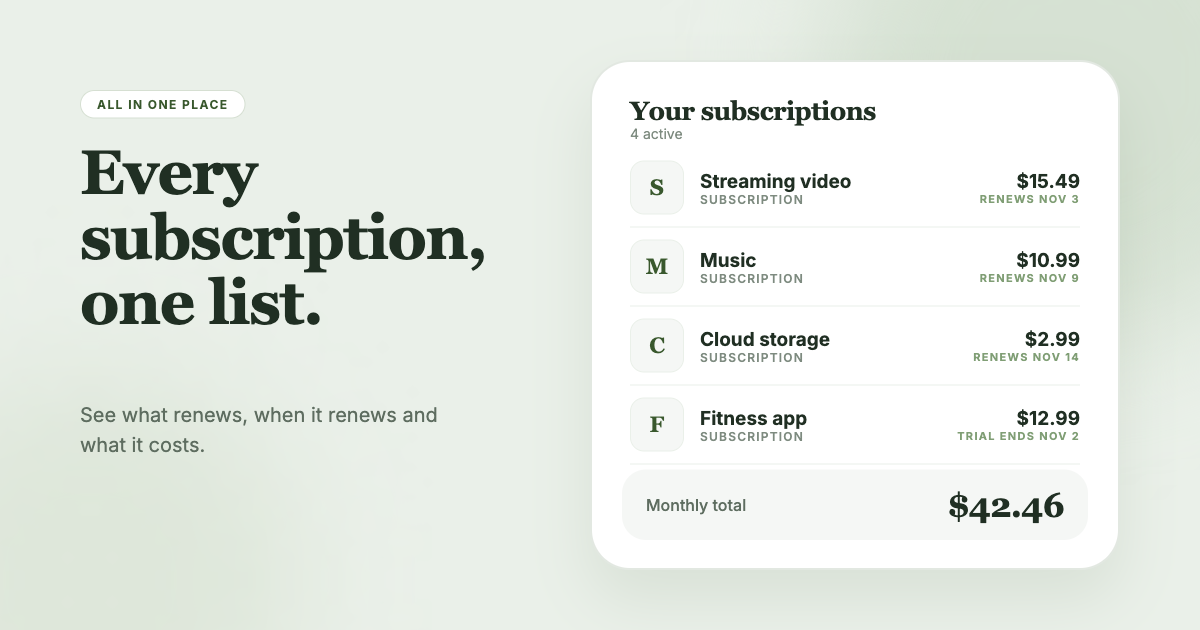
If keeping Notion current is the weak spot, SubSweeper scans your email receipts (read-only) and lists active subscriptions, free trials, and upcoming renewals in one dashboard, with reminders before charges and a monthly total. You can use it to find what belongs in your Notion database, or to replace the manual upkeep.