See and Cancel Subscriptions on Android and Samsung
Quick answer
On an Android phone, including a Samsung Galaxy, open the Play Store, tap your profile icon, tap Payments & subscriptions, then Subscriptions. Select a subscription and tap Cancel subscription. You can reach the same list from the Settings app: Google, your name, Manage your Google Account, Payments & subscriptions, Manage subscriptions.
This list covers subscriptions billed through Google Play. A plan billed through a carrier, a website, PayPal or Samsung's own services lives elsewhere. This article does not give Samsung-specific steps, because no official Samsung page could be confirmed.
See your subscriptions on Android
Google's cancel and manage page starts with one rule: make sure you are signed in to the Google Account that has your subscriptions. If the list looks empty or short, switch accounts. Google's tip is that the subscription may be on a different account.
Two ways to reach the list:
- From the Play Store. Go to subscriptions in Google Play, which is under Payments & subscriptions after you tap your profile icon.
- From Settings. Open Settings, tap Google, tap your name, tap Manage your Google Account, tap Payments & subscriptions, then tap Manage subscriptions.
A Samsung Galaxy runs Android, so both routes apply on a Samsung phone. Anything billed by Samsung rather than Google will not appear here.
Cancel a subscription
Google gives this sequence:
- On your Android device, go to subscriptions in Google Play.
- Select the subscription you want to cancel.
- Tap Cancel subscription.
- Follow the on-screen instructions.
Uninstalling the app does not cancel the subscription. Google says that when you uninstall the app, the subscription won't cancel. Cancel first, then remove the app.
After you cancel, Google says you can still use the subscription for the time you have already paid. Its example is a one-year subscription bought on January 1 for $10 and canceled on July 1. You keep access until December 31 and are not charged the following January 1.
Pause instead of cancel
Some subscriptions can be paused. Per Google, pausing takes effect at the end of your current billing period, and the available lengths range from about one week to three months depending on the app and subscription.
- Go to subscriptions in Google Play and select the subscription.
- Tap Manage, then Pause payments.
- Set the time period.
- Tap Confirm.
To restart a paused subscription, select it and tap Resume. A canceled one can be restarted with Resubscribe on the same screen. Google notes that some subscriptions can't be resumed that way and have to be set up again.
Change the payment method
On renewal, Google charges the payment method you used to buy the subscription, and it may place an authorization hold up to 48 hours before the renewal period starts. To switch methods, select the subscription, tap Manage, tap Update, and follow the prompts.
Google also warns that if a payment method is declined or has insufficient funds, the subscription may be canceled. A backup payment method on the account helps if you want to keep the plan.
Find the charge when you don't see the subscription
If your bank shows a Google charge and the list has nothing that matches, check order history. In the Play Store app, tap your profile icon, tap Payments & subscriptions, then Budget & history, per Google's order history page.
Google's billing page says Play charges appear as GOOGLE*Seller's name and usually show up within a few days. A pending authorization is a check on your card rather than a charge, and it may stay for 1 to 14 business days depending on your bank. If a charge does not begin with Google, it did not come from Google Play, and Google says to contact the fraud department of your payment method.
Subscriptions that Android's list can't show
Not every recurring charge on an Android phone goes through Google. Common places a plan can be billed instead:
- The company's own website. Cancel there, with the account you used to sign up.
- PayPal. The agreement lives in PayPal's Subscriptions and saved businesses list.
- A wallet or card app. Cash App's help page, for instance, says that blocking a business does not cancel an existing subscription and that you contact the business to resolve it.
- A carrier or another provider. Contact the provider.
Cash App's blocking page also points Google Play subscriptions back to the Play Store path: profile, Payments & subscriptions, Subscriptions.
If you cannot tell where a plan bills, search your email for receipts. The sender and the payment method on the receipt show which list to open.
Play Pass
If your subscription is Play Pass, Google says the apps you installed from it and their data stay on your device after you cancel. Paid apps then ask you to buy the app or subscribe to Play Pass again. In-app purchases are removed but available for individual purchase, and ads reappear in apps where they were removed. If you rejoin Play Pass, that content is unlocked again.
Checking in on a schedule
A subscription list is only useful if you open it. Once a quarter, open the Android list, cancel anything you did not use, and look at the payment method on the plans you keep. Then repeat the exercise for the other places that bill you.
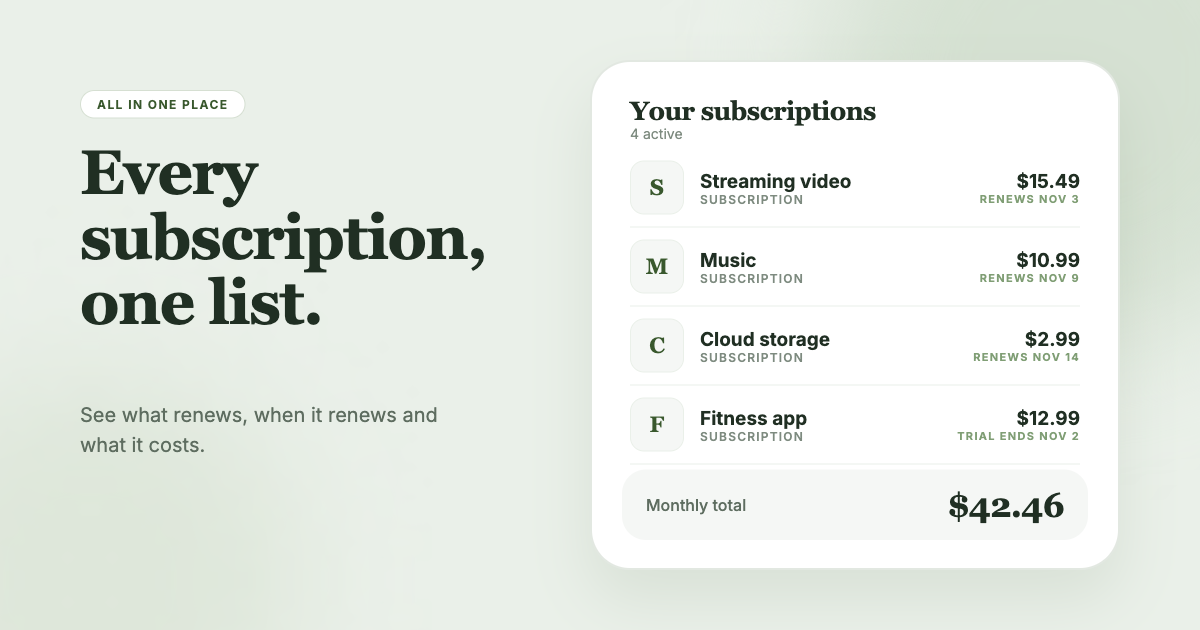
SubSweeper does the cross-checking. It scans your email receipts (read-only) to surface active subscriptions, free trials and upcoming renewals in one dashboard, whether they bill through Google Play, PayPal, a card or a website. It shows a monthly total, sends reminders before charges, and helps you cancel the ones you no longer want.