PayPal Automatic Payments: How to See and Cancel Them
Quick answer
Log in to PayPal on the website and go to Settings, then Payments. Select Subscriptions and saved businesses (some accounts show it as Automatic Payments), and select the merchant. On the merchant page you can cancel the automatic payment or change the payment method it uses.
PayPal's help article uses several names for the same thing. An automatic payment is also called a subscription, billing agreement or recurring payment. It means you saved PayPal as your way to pay with a merchant, including for transactions scheduled in advance.
See your PayPal subscriptions
PayPal's help article on automatic payments gives these steps for the website:
- Go to Settings.
- Click Payments.
- Select Subscriptions and saved businesses or Automatic Payments.
- Select the merchant.
The merchant page shows the payment details and the merchant's contact information. PayPal says the terms of an automatic payment are also viewable in your account after setup.
The list is longer than most people expect. When you check out with certain merchants, you can choose to save PayPal for future purchases, and those agreements sit in the same list. A store you saved PayPal with for faster checkout can appear next to a monthly streaming plan. Scroll the whole list before you decide it is short.
Cancel an automatic payment
From the merchant page you reached above, you can cancel the automatic payment. PayPal's article says that after you select the merchant, you can cancel the automatic payment from there.
Two points help you avoid surprises:
- PayPal's page does not say what happens to a payment that is already scheduled. Until the merchant confirms, assume a charge due in the next day or two may still go through.
- The agreement is between you, PayPal and the merchant. The merchant's contact details are on the merchant page, which is useful if the merchant's own site still shows an active plan.
After canceling, look at the merchant's own account page or your email for a cancellation notice. PayPal's page does not promise one. A plan that still shows as active on the merchant's side is worth a short message to the merchant.
Change the payment method instead
If you want to keep the service but pay differently, PayPal's steps are:
- Go to Settings and click Payments.
- Select Subscriptions and saved businesses or Automatic Payments.
- Select the merchant.
- Select Change Payment Method.
- Choose a different payment method, or link a new card or bank.
- Click Save.
Most automatic payments let you assign a specific payment method when you set them up. PayPal says that method is prioritized for that payment even if you picked a different card or bank as your preferred way to pay in general. If you replaced your main card and one subscription still bills the old one, this setting is the first place to look.
Find the right merchant when a charge looks unfamiliar
Names on a PayPal statement often show a company's billing name rather than the brand you signed up with. A few moves narrow it down:
- Open the list above and read the merchant names one by one. Each entry has contact details, so you can ask the merchant directly.
- Search your email for PayPal receipts. The receipt names the merchant and the amount.
- Check whether another family member has used your PayPal account to sign up for something.
PayPal's unauthorized activity article puts it in that order. It tells you to rule out a family member using your account and an automatic payment such as a subscription before you file a case. It points to the same list: Settings, Payments, then Subscriptions and saved businesses or Automatic Payments.
If the charge is still a mystery
When the list does not explain a payment, PayPal says to report it right away. On the website, go to the Resolution Center, choose Report a problem, select the payment, and choose the option for unauthorized activity. PayPal says you will get an email within 10 days after you report. The page does not give filing deadlines, so do not wait.
Keep the PayPal email and any messages from the merchant together. If the case turns out to be an old subscription you forgot, canceling it from the list is the fix. If it is real unauthorized activity, PayPal handles it through the same report.
Link a merchant in the app
PayPal says that in the U.S. you can link your PayPal account to select merchants by setting up an automatic payment agreement in the PayPal Consumer App. In the app, you go to the Subscriptions or Linked Businesses page, tap +, select a merchant, and follow the prompts.
The article gives setup steps for the app but no steps for viewing or canceling there. For canceling, use the website path above.
A short routine
Five minutes a quarter keeps the list honest:
- Open Settings, Payments, then the subscriptions list.
- Read every merchant name and note the ones you do not use.
- Cancel the unused ones from the merchant page.
- Check the payment method on the ones you keep.
- Confirm a cancellation with the merchant if it still shows an active plan.
One view across PayPal and everything else
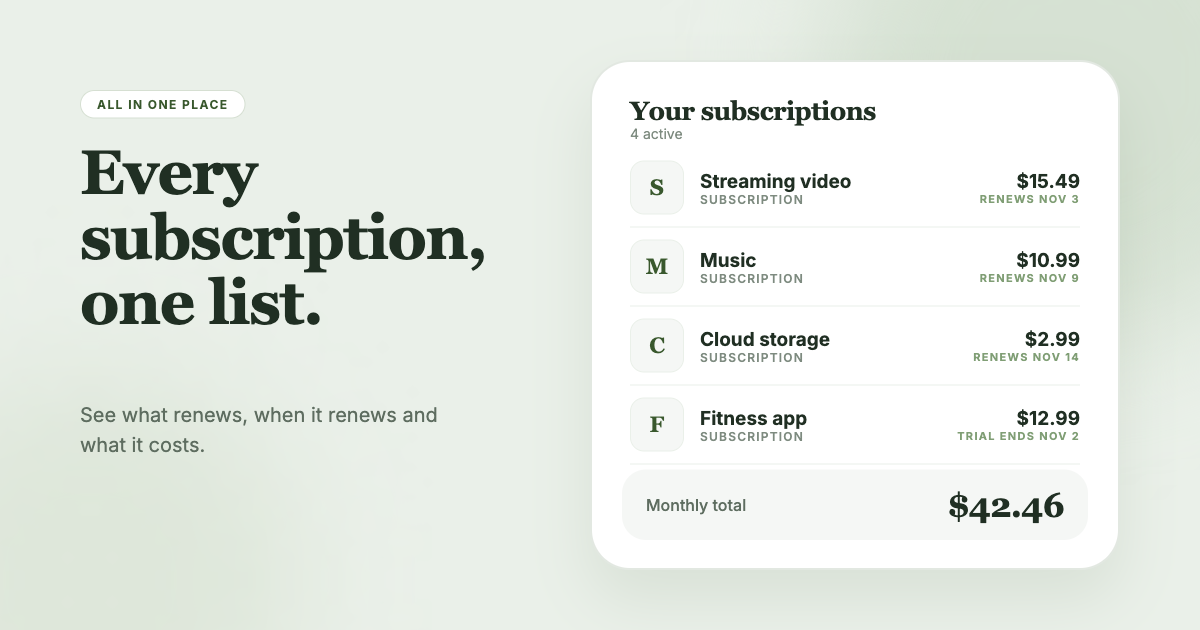
PayPal is one of several places a subscription can bill from. The same service might charge your card today, PayPal next month and an app store after that. SubSweeper scans your email receipts (read-only) to surface active subscriptions, free trials and upcoming renewals in one dashboard, whichever way they are billed. It shows a monthly total, sends reminders before charges, and helps you cancel, which is handy when the PayPal list and your inbox disagree.