How to Find Recurring Charges on a Bank Statement
Quick answer
Pull three months of statements, then mark every merchant that appears more than once with the same or a similar amount at regular intervals. Check twelve months for annual charges. Match each marked charge to a service in your email or app store. Anything left over is a charge to investigate.
Step 1: Gather the statements
Download or open statements for each account you pay from: checking, savings, credit cards and any debit card. Most banks let you download a statement as a PDF or export transactions as a spreadsheet file.
Use at least three months. Monthly charges repeat three times, which makes them easy to see. For annual or quarterly charges, go back twelve months if you can.
Step 2: Sort and scan
If you have a spreadsheet export, sort by merchant name. Repeats then sit next to each other. If you only have a PDF, use the search function to look for names you suspect, then scan the page for repeats.
Look for these patterns:
- The same merchant on the same day each month
- The same amount, or an amount that changes by a small step after a price increase
- A charge at a fixed interval of seven days, a month, three months or a year
- Charges that began after a particular date, which suggests a trial that converted
Step 3: Mark and copy
Create a sheet with four columns: merchant as printed, amount, how often it appears and what it is. Copy each repeating charge in. Leave the last column blank for now.
A short worked example with invented entries:
| Merchant as printed | Amount | Pattern | What it is |
|---|---|---|---|
| ACME STREAM 800-555-0100 | $15.99 | Monthly, the 4th | |
| GOOGLE*Cloud | $2.99 | Monthly, the 11th | |
| SOFTCO ANNUAL | $59.99 | Once in 12 months | |
| FITLIFE APP | $4.99 | Weekly |
These entries are examples. Your statements will have their own names and prices.
Step 4: Decode the merchant names
Names on statements are short and often include the payment processor. To work out what a charge is:
- Search your email for the amount and for the first word of the name.
- If the name starts with GOOGLE*, it is a Google Play charge. Google lists the Play order history under Payments & subscriptions in the Play Store app (Google Play Help).
- For an Apple charge, search your email for receipt from Apple or invoice from Apple, find the receipt that matches the amount and check the Apple Account on it (Apple Support).
- If neither works, search the printed name on the web, then contact the bank for the merchant's details.
Fill in the last column as you go. Our guide on unknown charges has more on the leftover ones.
Step 5: Separate subscriptions from bills
Not every recurring charge is a subscription you can cancel on a whim. Split the list into two groups.
- Subscriptions you chose: streaming, apps, memberships, software.
- Bills and obligations: rent, insurance, loan payments, utilities.
Review the first group for cancellation. For the second, check whether the amount is correct and move on.
Step 6: Decide and cancel
For each subscription, note when you last used it. If you do not use it, cancel through the place that bills you: App Store, Google Play or the company's site. Our guide on how to find all subscriptions lists the menu paths.
If a charge keeps arriving after you cancel, the CFPB suggests telling the company you are revoking permission for automatic payments, telling your bank the same and following up in writing or by email. Your bank may recommend a stop payment order, which generally has a fee, and the CFPB notes that stopping payments does not cancel what you owe (CFPB).
Step 7: Watch the deadlines
If a bank account charge is one you did not authorize, speed matters. The CFPB says to report an unauthorized withdrawal within 60 days after the bank sends the statement that shows it. After that, you could be responsible for later transactions made before you reported (CFPB).
The same page says a bank generally has 10 business days to investigate, and usually has to resolve the issue within 45 days.
Watch for price changes
A recurring charge can change without a new sign-up. When you sort by merchant, compare the amounts across months. A charge that moved from $9.99 to $11.99 is a price increase (an example). Check the service's account page or email for a notice, and decide whether the new price is still worth it. A price change is a natural moment to cancel, since the service is asking you to choose again.
Make it routine
A monthly scan of the newest statement takes about five minutes once you have a list. Compare each recurring charge to your sheet. A charge not on the sheet is new, so find out what it is that week, while the date is fresh in your mind.
Cross-check with your inbox
Statements show what you paid, but not what the service is. Your email shows the service and the plan name. Using both gives the full picture.
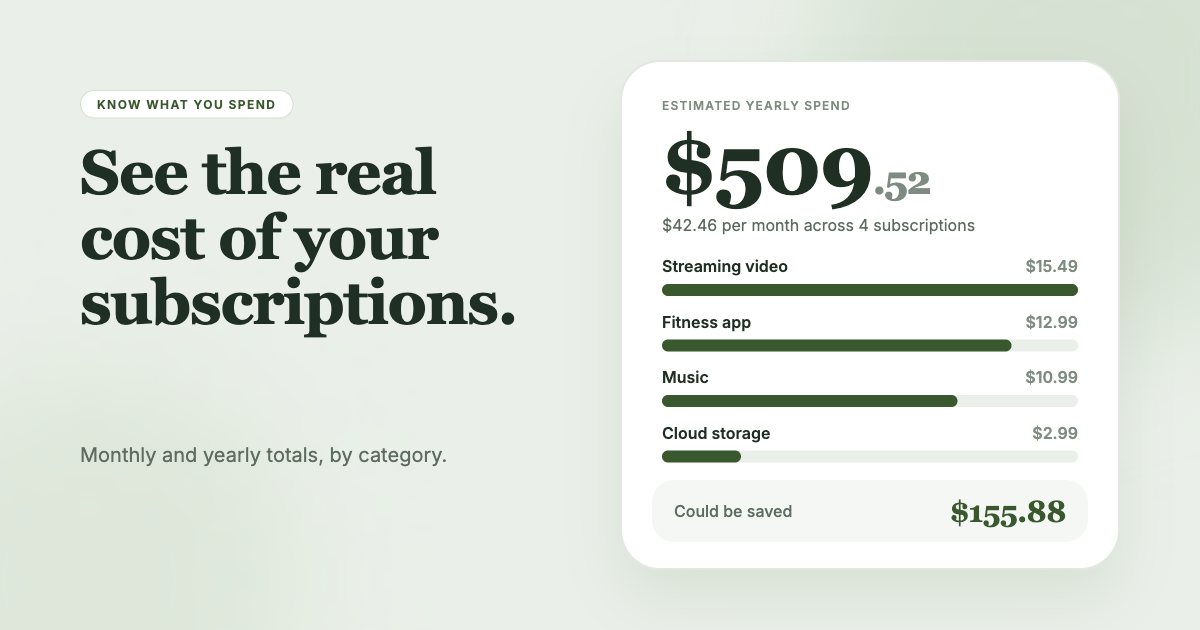
SubSweeper reads your email receipts (read-only) and shows active subscriptions, free trials and upcoming renewals in one dashboard, with a monthly total and categories. Use it next to your statement scan to confirm that each recurring charge has a named service, and to get reminders before the next one hits.