How Do I See What Apple is Charging Me For?
Sometimes an unfamiliar debit from Apple appears on your card statement, like "Apple.com/bill" or iTunes, and it's unclear what you bought. These payments show up under several names, which makes them easy to mix up.
To find out what the money was charged for, read Apple's purchase history. This guide walks through each payment in order.
Understanding Your Apple Charges
Quick Method: Check Apple Purchase History
Accessing Your Purchase History on iPhone
The fastest way to see all your Apple charges is through your purchase history:
Open Settings on your iPhone.
Tap your name (Apple ID section) at the top.
Select Media & Purchases.
Tap View Account and authenticate with Face ID, Touch ID, or password.
Tap Purchase History.
What You'll Find in Purchase History
Your purchase history displays:
All App Store purchases including apps, games, and in-app purchases.
Subscription charges with renewal dates.
iTunes Store purchases like music, movies, and TV shows.
Apple Services such as iCloud storage and Apple Music.
Transaction dates and amounts.
Payment method used for each purchase.
Alternative Access Methods
Through the App Store:
Open the App Store.
Tap your profile picture in the top-right corner.
Select Purchase History.
Through iTunes on Computer:
Open iTunes or Apple Music app (on newer Macs).
Sign in with your Apple ID.
Go to Account > View My Account.
Click See All next to Purchase History.
Understanding Different Types of Apple Charges
App Store and iTunes Purchases
One-Time Purchases
Individual apps, games, or premium app versions.
Movies, TV shows, music, or audiobooks.
Usually appear as single charges on your statement.
In-App Purchases
Game currency, extra lives, or premium features.
Photo editing filters, productivity app upgrades.
Often smaller amounts but can add up quickly.
Subscription Services
Apple's Own Services
iCloud Storage - Monthly charges for additional cloud storage.
Apple Music - Monthly or annual music streaming subscription.
Apple TV+ - Monthly video streaming service.
Apple News+ - Monthly news and magazine subscription.
Apple Arcade - Monthly gaming subscription.
Apple Fitness+ - Monthly fitness content subscription.
Third-Party App Subscriptions
Dating apps, productivity tools, streaming services.
Photo editing apps, meditation apps, language learning.
News apps, weather apps, fitness tracking services.
Family Sharing Charges
If you're the family organizer or part of a Family Sharing group:
Family member purchases may appear on your payment method.
Shared subscriptions like Apple Music Family or iCloud Family.
Approval-based purchases from family members.
Detailed Investigation: Tracking Mysterious Charges
Common Apple Billing Names on Bank Statements
Apple charges may appear under various names:
iTunes Store
App Store
Apple Services
Apple Pay
[APITUNES.COM/BILL](http://APLITUNES.COM/BILL)*
Step-by-Step Charge Investigation
For Recent Charges (Last 90 Days)
Access Purchase History using the methods above.
Match dates and amounts between your bank statement and Apple's records.
Look for charges within 24-48 hours of the bank statement date (processing delays are common).
Check family member activity if you have Family Sharing enabled.
For Older Charges
Check email receipts - Apple sends email confirmations for all purchases.
Search your inbox for emails from "no_reply@email.apple.com."
Review annual summaries that Apple sometimes sends.
Contact Apple Support for charges older than what appears in your purchase history.
Using Email Receipts for Verification
Finding Apple Receipts
Search your email for Apple or iTunes.
Look for sender addresses containing "apple.com."
Check spam/junk folders for missed receipts.
Review receipts for purchase details, dates, and amounts.
What Receipts Tell You
Exact purchase description and price.
Date and time of transaction.
Payment method used.
Order number for Apple Support reference.
Managing Apple Billing Across Multiple Devices
Multiple Apple IDs
If you use different Apple IDs across devices:
Check each Apple ID separately for purchase history.
Note which devices use which Apple ID.
Consider consolidating to simplify billing management.
Family Sharing Complications
As Family Organizer
Review all family member purchases through Family Sharing settings.
Check Settings > [Your Name] > Family Sharing > [Family Member] > Purchase Sharing.
As Family Member
Your purchases may be charged to the family organizer.
Check with the family organizer for purchase confirmations.
Third-Party Tools for Comprehensive Tracking
Beyond Apple's Built-In Tools
Apple's built-in tracking covers App Store purchases. For other subscriptions, SubSweeper is a free option:
SubSweeper Benefits
Free tracking of all subscriptions, not just Apple services.
Bank statement integration to catch charges you might miss.
Cross-platform visibility including subscriptions from other app stores.
Spending analytics to see your total digital subscription costs.
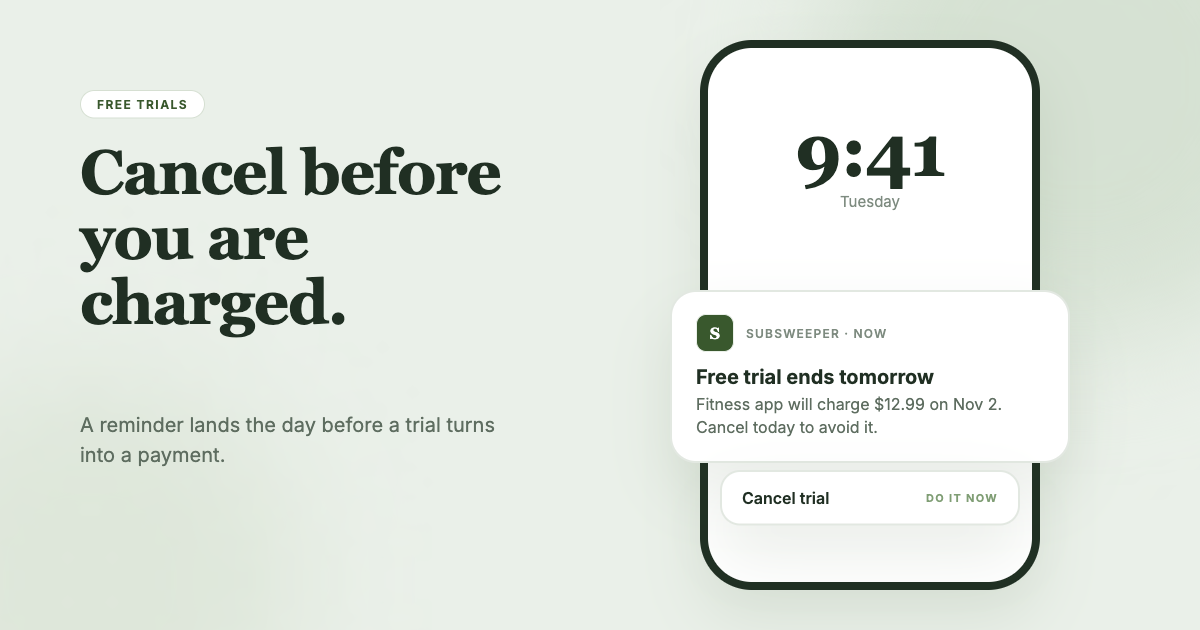
Renewal alerts for all services, to help prevent unexpected charges.
Why Additional Tools Help
Apple's purchase history primarily covers App Store and iTunes transactions, but you might also have:
Direct website subscriptions that bypass the App Store.
Subscriptions from other platforms like Google Play or streaming services.
Business or education accounts with separate billing.
Gift card transactions that complicate tracking.
Disputing and Refunding Apple Charges
When to Request Refunds
Valid Refund Scenarios
Accidental purchases (especially by children).
Apps that don't work as advertised.
Duplicate charges or billing errors.
Subscriptions that auto-renewed despite attempted cancellation.
How to Request Apple Refunds
Through Apple's Website
Visit reportaproblem.apple.com
Sign in with your Apple ID.
Find the charge you want to dispute.
Select the problem type and provide a detailed explanation.
Submit the request and wait for a response.
Through Apple Support
Use the Apple Support app on your iPhone.
Call Apple Support directly.
Visit an Apple Store for in-person assistance.
Refund Expectations
Processing time: Usually 3-5 business days for approved refunds.
Documentation: Keep screenshots and detailed explanations.
Preventing Unwanted Apple Charges
Setting Up Purchase Controls
Require Authentication
Go to Settings > Screen Time > Content & Privacy Restrictions.
Tap iTunes & App Store Purchases.
Set Require Password to Always.
Family Controls
Set up purchase approval for family members.
Monitor family member app usage.
Set spending limits through Screen Time.
Subscription Management
Best Practices
Monthly reviews of all active subscriptions.
Calendar reminders before free trials end.
Immediate cancellation of trials you don't plan to continue.
Annual subscription evaluation to decide whether each is worth keeping.
Understanding Apple's Billing Cycle
When Charges Appear
Subscription Timing
Monthly subscriptions typically charge on the same day each month.
Annual subscriptions charge on the anniversary date.
Pro-rated charges may occur when changing plans.
Processing Delays
Bank statements may show charges 1-3 days after Apple processes them.
Time zone differences can affect apparent transaction dates.
Weekend and holiday processing may cause delays.
Managing Multiple Payment Methods
Payment Method Priority
Apple uses your default payment method first.
Falls back to secondary methods if primary fails.
Family organizers' payment methods are used for family purchases.
Updating Payment Information
Go to Settings > [Your Name] > Media & Purchases.
Tap View Account.
Select Payment Information.
Update or remove payment methods as needed.
Advanced Apple Billing Insights
Seasonal Spending Patterns
Common Spending Increases
Back-to-school app purchases in August/September.
Holiday movie rentals and gift purchases.
New Year fitness and productivity app subscriptions.
Summer travel and entertainment app downloads.
Tax Considerations
For Business Users
Keep detailed records of business-related app purchases.
Check the tax treatment of digital subscriptions.
Consider separate Apple IDs for business and personal use.
Next steps
Start with your purchase history in device settings or the App Store, then compare it with email receipts and bank statements. A free app like SubSweeper can track subscriptions on other platforms too. If a charge still doesn't make sense, contact Apple Support, which has records of all transactions.