How to Cancel an Apple Subscription on iPhone
Quick answer
Open Settings, tap your name, tap Subscriptions, tap the subscription, then tap Cancel Subscription. You may need to scroll down to find the button. If there is no Cancel button, or you see an expiration message in red text, the subscription is already canceled and will not renew.
That covers subscriptions from Apple, such as iCloud+, Apple Music and Apple TV, and subscriptions you bought inside apps through the App Store. Apple's cancel page uses the same steps for both.
The steps, with what you should see
- Open the Settings app.
- Tap your name at the top.
- Tap Subscriptions.
- Tap the subscription you want to stop.
- Tap Cancel Subscription. Scroll down if you don't see it. Follow any prompt that appears on screen. After step 5, reopen the same subscription. A subscription that is canceled shows an expiration message in red text instead of a Cancel button. That is how Apple tells you the cancellation worked. If you are not sure you finished, this screen is the check.
Apple's instructions send you to the Subscriptions screen for cancellation, so start there rather than in the app itself.
If it's a free trial
Apple says to cancel a trial at least 24 hours before it ends if you don't want it to renew. That is the one timing rule in Apple's instructions, so do not wait for the last evening.
Cancel on day one of the trial. Apple's page does not say whether you keep access for the rest of the trial after canceling, so check the subscription screen after you cancel to see what date it shows.
If you can't find the subscription
If the subscription isn't in the list, Apple gives this sequence:
- Search your email for the words receipt from Apple or invoice from Apple.
- On the receipt, check which Apple Account was used. People often have more than one, such as an old one from a previous phone.
- If another Apple Account of yours appears, sign in with that account and cancel there.
- If a family member's Apple Account appears on the receipt, ask that person to cancel. Apple says you can't cancel a family member's subscription.
- If there is no receipt from Apple, you may have bought the subscription from another company. Check your bank or credit card statement to see who bills you, then contact that company.
Subscriptions that came through a wireless carrier or another provider are managed with that provider, per Apple. If you need to change the Apple Account linked to such a subscription, contact Apple Support first, then your carrier.
Why one charge can cover several subscriptions
Apple may group several purchases and subscriptions into one charge on your statement, according to its page on how Apple bills. If your statement shows a single amount that doesn't match any one subscription, open your purchase history or the emailed receipt to see what the charge covers. Apple's page on unfamiliar charges says apple.com/bill appears on your statement when you buy an app, music, a movie or other content from Apple, and that you can look the charge up at reportaproblem.apple.com.
On an iPhone you can reach the history through the App Store. Tap your photo or initials, tap Apps & Purchase History, and then tap Purchase History. Tap Last 90 days at the top to pick an older range.
Cancel without your iPhone
You don't need the phone in your hand. Per Apple, you can cancel on the web by signing in at account.apple.com and opening Subscriptions. On a Mac, open the App Store, click your name at the bottom of the sidebar, click Subscriptions, click the subscription, and click Cancel Subscription. The iPad uses the same Settings steps as the iPhone.
On a Windows PC, Apple Music and Apple TV can be canceled in their apps: click your name, choose View My Account, click Manage next to Subscriptions, click Edit on the subscription, and click Cancel Subscription.
What happens if a payment fails
Apple's billing page explains the order it charges: your Apple Account balance first, then your primary payment method, then your other methods in the listed order. If none can be charged, Apple might try again, and a failed payment leaves a negative balance. Until you update the payment method, you can't buy, download or update apps.
What can go wrong
- Cancelled the wrong one. If you have several streaming or storage plans, read the plan name on the subscription screen before you tap Cancel Subscription.
- Cancelled on the wrong account. The Subscriptions screen only shows subscriptions for the Apple Account signed in on that phone.
- Still being charged. Compare the charge date with the date on the subscription screen. If the screen shows expiration text in red, the subscription is not renewing and the charge should be traced through your receipt.
- Apple isn't the biller. If there is no Apple receipt, the charge comes from somewhere else, and Apple cannot cancel it.
A habit that prevents this
Canceling after a charge lands is the expensive order. A monthly look at the Subscriptions screen, and a calendar reminder for any trial, catches the charge before it happens.
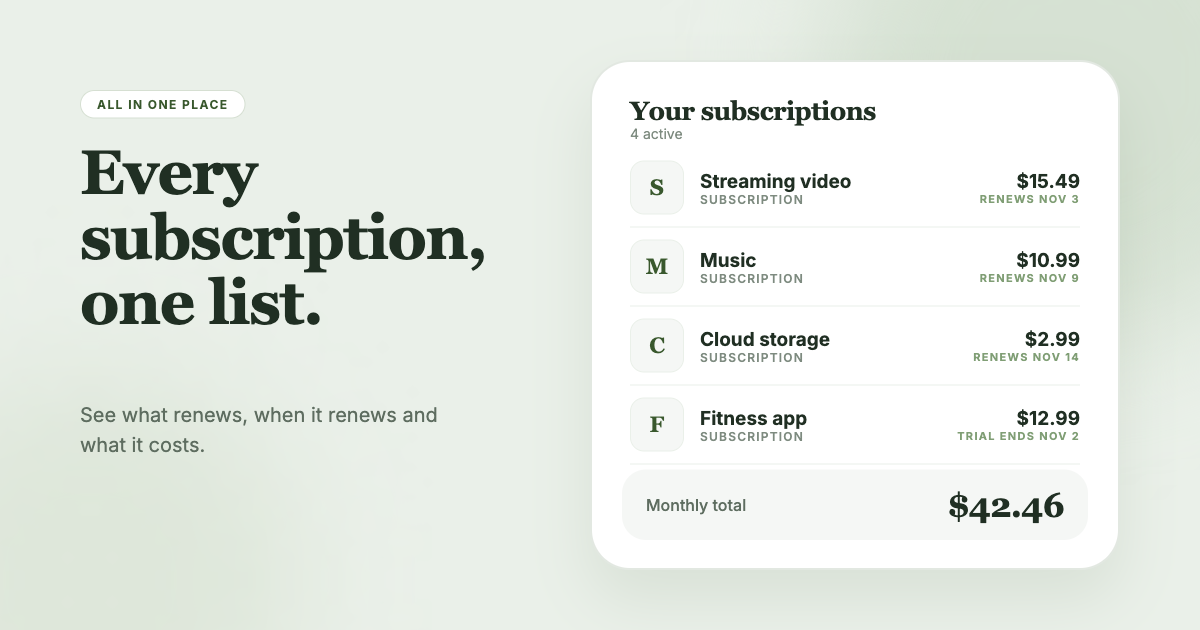
SubSweeper reads your email receipts (read-only) and shows active subscriptions, free trials and upcoming renewals in one dashboard, so an Apple receipt shows up next to your Google and PayPal ones. It sends reminders before charges and helps you cancel, and the monthly total makes it clear what your Apple subscriptions add up to.