How to Cancel YouTube TV (or Pause It Instead)
Quick answer
In a web browser, select your profile photo, go to Settings, then Membership, click Manage, and choose Cancel membership. You keep access until the end of your payment period. If you only need a break, pause for 4 weeks up to 6 months instead.
If YouTube TV costs too much this month, you do not have to cancel outright. YouTube TV lets you cancel or pause, and the two behave differently. Canceling stops future billing. Pausing suits you better when you expect to come back soon. The steps below follow Google's cancel or pause page.
Cancel YouTube TV on a computer
Go to YouTube TV in a web browser and sign in.
Select your profile photo.
Open Settings, then Membership.
Choose Manage.
Select Cancel membership, then confirm the cancellation.
Cancel YouTube TV on Android
Google's page has separate tabs for Android and iPhone/iPad, and the web steps above are the ones this guide has confirmed. On a phone, open the Membership area in the YouTube TV app and follow the current on-screen path. If you purchased add-on networks, you can remove those individually without ending the whole membership.
Take a screenshot of the confirmation screen. If a charge shows up later, that image settles the question quickly.
What happens after cancellation
You keep access to YouTube TV until the end of your payment period. Google's page states you will still have access until then.
You lose add-on networks, and you cannot add networks without a membership.
Recorded programs in your library expire after 21 days.
Your library preferences are saved if you sign up again.
If you restart later, you may not qualify for promotional prices or get your previous recordings back.
Canceling does not remove access right away, even during a free trial. If you want access to end immediately, Google says to get in touch with its support team.
Plan around the 21-day window if you have recordings you care about. Watch them before your access ends, since the library will not wait for you.
When pausing is better than canceling
Pausing makes sense when you are traveling, cutting costs for a few weeks, or waiting for a sports season to restart.
You choose a pause from 4 weeks up to 6 months.
The pause starts after the end of your current billing cycle.
During the pause, you cannot access YouTube TV and no new programs are recorded.
Previous recordings are kept until the pause ends, though they remain subject to the 9-month expiration.
A paused membership cannot be extended, but you can resume early and pause again as needed. When the pause ends, or when you resume, that date becomes your new billing date.
To pause, open the same Membership area, use the slider to choose the pause length in weeks, and click Pause.
The 4-week minimum matters for sports fans. If your season break is shorter than a month, a pause will not fit it, and you will pay for the weeks you do not watch.
Cancel or pause: a quick way to choose
You expect to return within six months and want your library preferences kept: pause.
You may not come back, or you want the cost gone permanently: cancel.
You only want to drop one extra network: remove the add-on and keep the membership.
Before you confirm
Check whether you are canceling the base plan or only an add-on.
Screenshot the confirmation page.
Put the final access date in your calendar.
Watch anything in your library you want to keep.
If you do not see Membership settings
The Membership path above covers a membership billed by YouTube TV directly. If your receipt comes from Apple, cancel through Apple. Apple's support page says to open Settings on your iPhone or iPad, select your name, select Subscriptions, choose the subscription, and select Cancel Subscription. If there is no Cancel button, or you see an expiration message in red text, the subscription is already canceled.
For billing through another company, such as a cable or internet provider or a streaming device maker, cancel with that company. Apple notes that subscriptions from a wireless carrier or other provider must be managed through that provider. If you do not recognize the biller, check your bank or card statement to see which company charges you, then contact that company.
Frequently asked questions
Will I be charged again after I cancel?
Not after the current payment period ends. You keep access until then.
Can I get a refund for the rest of the month?
Google's cancel and pause page does not describe refunds. Google's page lists a phone line for billing questions, +1 833-389-2054, where you can chat or call to explore options to pause or customize your plan. Have the charge date ready.
What happens to my recordings?
After you cancel, recorded programs in your library expire after 21 days. If you pause instead, existing recordings stay until the pause ends, subject to the 9-month expiration.
Do I lose my add-on networks?
Yes, they end with the membership. You can also remove them one at a time without canceling.
Can I resume early from a pause?
Yes. You can resume early or pause again, but you cannot extend a pause.
Keeping track of renewals
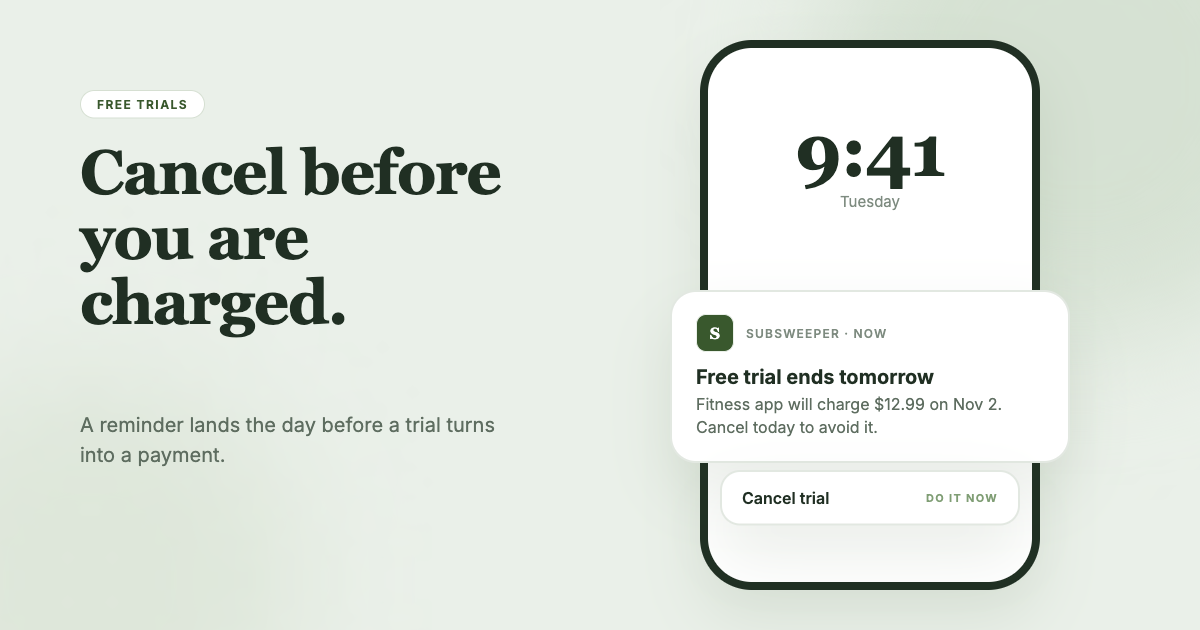
Live TV plans renew on a fixed date, and when a pause ends you are charged the normal monthly price. SubSweeper scans your email receipts (read-only) and shows active subscriptions, free trials and upcoming renewals in one dashboard. It also sends reminders before charges, which helps when a pause is about to end.