How to Cancel Walmart Plus Subscription 2026
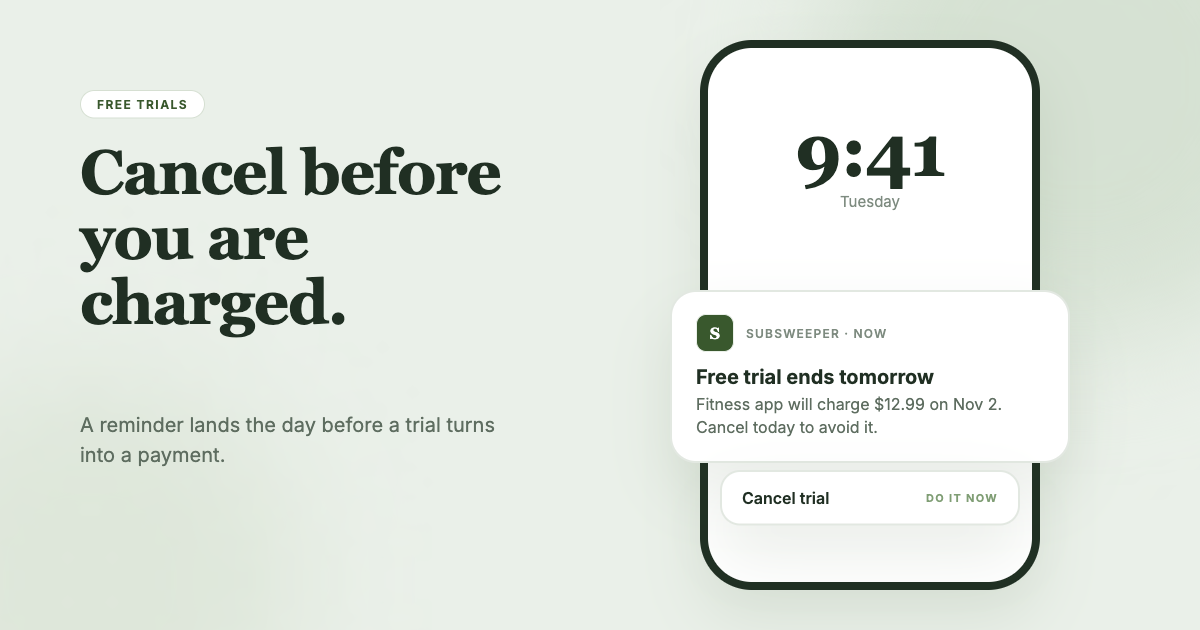
If you’re paying for Walmart Plus but don’t use the perks anymore, the next renewal can sneak up fast. The membership is tied to your billing cycle, so it helps to know where to cancel before the date arrives.
This guide gives step-by-step instructions for canceling in the Walmart app, alternatives for when buttons don’t behave, and what to expect after you cancel.

Before You Cancel
Check your plan type first. If you’re paying month-to-month, your membership generally stays active until the end of the billing cycle. For annual members, refunds (if any) can depend on how much time is left in the term.
After you cancel, you should still be able to use Walmart Plus features through the end of your current billing period. Your account then loses membership benefits.
If you’re unsure about fully canceling, look for alternatives like pausing or adjusting plans (availability varies), and confirm any prompt that appears before you finalize the change.
How to Cancel Walmart Plus
The Walmart app is the most direct route. If you need account help, the official site has a page for it: Walmart membership account page.
Step 1: Open the Walmart app and sign in. Launch the Walmart app on your phone, then sign in with the same account you use for Walmart Plus.
Step 2: Go to the Walmart+ area. From the app’s main navigation, find the section labeled Walmart+ and open it.
Step 3: Choose “Manage Your Membership.” Look for a Manage Your Membership option within the Walmart+ area and tap it to view your membership settings.
Step 4: Scroll to the bottom of the Manage Membership page. On the Manage Membership screen, scroll all the way down so you can see the cancellation controls.
Step 5: Select the correct cancellation option. Tap Cancel Your Account (or, if you’re on a trial, tap Cancel Free Trial) based on what you’re currently paying for.
Step 6: Confirm the cancellation prompt. Follow the on-screen prompts to confirm. If the app shows a confirmation screen, double-check you’re canceling the right membership before submitting.
Step 7: Verify your status after submitting. Return to the membership page and confirm it shows a canceled status or an end-of-billing-cycle date. Keep this as proof if you need to dispute a charge.
Warning: If you see prompts like “Remind me later” or other scheduling options, read them carefully. Some flows may offer an email reminder before renewal, but the final step must still be completed to stop future renewals.
Alternative Methods
If the app doesn’t show the right buttons or you’d rather cancel another way, try one of these options.
Cancellation through mobile app (iOS/Android): Use the same path: Walmart app → Walmart+ → Manage Your Membership → Cancel Your Account (or Cancel Free Trial).
Cancellation through web browser: Sign in to your Walmart account online, navigate to the membership management area, and look for membership cancellation or plan management. If you can’t find it, use the official membership page for guidance.
Cancellation through customer support: Contact Walmart support and request assistance with membership cancellation if the app/web interface won’t load or won’t show the cancellation option. Have your account email and any recent billing details ready.
Cancellation through third parties (App Store / Google Play): If you started or manage Walmart Plus through an Apple or Google purchase flow, you may need to cancel via your store subscription settings instead of within Walmart. Otherwise renewals can continue.
What Happens After Cancellation
After you cancel, your membership typically continues until the end of the current billing cycle. You can usually keep using Walmart Plus benefits through that date.
Refunds depend on whether you’re month-to-month or annual and on the timing of your cancellation. If a refund is available, it would be processed according to Walmart’s policy for your plan and billing method.
Your account data and membership history generally remain associated with your Walmart account. If you change your mind, reactivation may be possible before your billing cycle ends, often by signing into your Walmart account and resuming membership.
Troubleshooting
“Cancel” button doesn’t appear: Scroll further down on Manage Your Membership. If it still doesn’t show, try switching networks (Wi‑Fi vs. cellular) or updating the app, then sign out and back in.
You can’t find “Walmart+” in the app: Use the app’s search or navigation to locate the Walmart+ section. Make sure you’re logged into the correct account, the one tied to the charges.
Cancellation confirmation won’t complete: Make sure you’re not using a VPN or blocking third-party cookies. Try again in a different browser (for web) or restart the app (for mobile).
Charges continue after canceling: Confirm the cancellation status on the membership page and compare it to your renewal date. If the membership was purchased through Apple or Google, cancel through that store’s subscription settings.
Annual member refund expectations: If you’re seeking a refund, check your plan details and billing confirmation. Refund outcomes can vary based on remaining time and billing terms.
If you still can’t resolve it, contact customer support, especially when the app shows a partial flow or you’re unsure which account is billed. If you manage multiple bills, SubSweeper can help keep subscription renewals from slipping through.