Google Play Charge on Your Statement: What It Is
Quick answer
A charge that starts with GOOGLE* came from Google Play, as long as it matches one of Google's formats. Google writes Play charges as GOOGLE*Seller's name, usually a developer name, an app name or a content type such as Books. To find the exact item, open your Google Play order history.
If the line does not start with Google, it did not come from Google Play. Google says to contact your payment method's fraud department in that case.
What the statement line looks like
Google's fees and charges page says that charges appear on your statement as GOOGLE*Seller's name and usually show up within a few days of the order. There are no fees for making purchases on Google services like Google Play. You pay for the purchase, applicable taxes, and delivery fees.
Google's page on charges you don't recognize lists the three forms a Google Play purchase can take:
- GOOGLE*App developer name, for Android apps
- GOOGLE*App name, for Android apps
- GOOGLEContent type, for example GOOGLEBooks
If a line begins with one of these, Google treats it as a Play charge and tells you to report it to Google if you do not recognize it. Depending on your location, your bank or card company might also charge fees for international transactions.
Find the purchase behind the charge
Start with order history. Per Google's order history page, in the Play Store app you tap your profile icon, tap Payments & subscriptions, then Budget & history. Match the date and amount to the line on your statement.
Three reasons a charge is hard to match:
- Wrong Google Account. The purchase may sit in another account you use. Switch accounts and check there.
- Someone else bought it. Google says to consider whether a family member or friend made the purchase. If they did, you may be eligible for a refund instead of the fraud process.
- It is a subscription renewal. A plan you bought months ago bills again without a new purchase screen. Check your subscriptions list next.
Check your subscriptions
Recurring charges are the most common source of a GOOGLE* line you don't remember. Google's cancel page shows where to look:
- On your Android device, go to subscriptions in Google Play.
- Select the subscription.
- Tap Cancel subscription and follow the on-screen instructions.
You can also reach the list through the Settings app. Tap Google, tap your name, tap Manage your Google Account, tap Payments & subscriptions, then Manage subscriptions.
Google notes that if you cannot find the subscription, it may be on a different account. Uninstalling the app does not cancel it. Google states that when you uninstall an app, your subscription won't cancel.
Pending holds are not charges
Sometimes a Google line shows up on your bank app before any purchase posts. Google explains that pending payment authorizations happen so it can confirm the card is valid and that you have enough funds. These are authorization requests, not charges, and you do not pay for them.
Google says authorizations may stay in your account for 1 to 14 business days, depending on your bank. If a pending authorization is still there after 14 business days, contact your bank.
A related note from Google's cancel page: on renewal, Google may place an authorization hold up to 48 hours before the renewal period begins. A pending line a day or two before a renewal date is consistent with that.
If the charge is not yours
Google's guidance depends on how you paid.
Credit card, debit card or PayPal. Google can act only within 120 days of the transaction date. Within that window, submit a separate claim for each payment method used through Google's unauthorized transactions form. You can expect an email update typically within 7 business days. For a transaction older than 120 days, contact the fraud department of your card company or PayPal immediately.
eWallets. Contact the fraud department of your eWallet company immediately.
Mobile phone billing. Google can act only within 60 days. To continue, you need a correlation ID or request ID from your carrier. Google says a correlation ID is a combination of numbers that starts with the letter g, and a request ID starts with an uppercase G followed by an alphanumeric string. With a correlation ID you submit the claim. With a request ID you contact your carrier's billing fraud department. After 60 days, contact the carrier's fraud department immediately.
Other forms of payment. If you have access to your Google Account, contact Google support. If you do not, contact your payment method's fraud department immediately.
Check or cancel a claim
If you filed a claim, Google lets you check its status. You need the email address you used and the Claim ID sent to your email. If you filed while signed in and later find the charge came from a source you recognize, you can cancel the claim with the same email address and claim ID.
To help prevent unauthorized charges in the future, Google points to purchase verification for Google Play.
Why this keeps happening
A GOOGLE* line tells you the biller, not the product. Apps, books, music, games and plans all collapse into the same prefix. The seller name after the asterisk is the best clue, and your inbox is the next. Searching your email for the seller name is the quickest way to find a receipt.
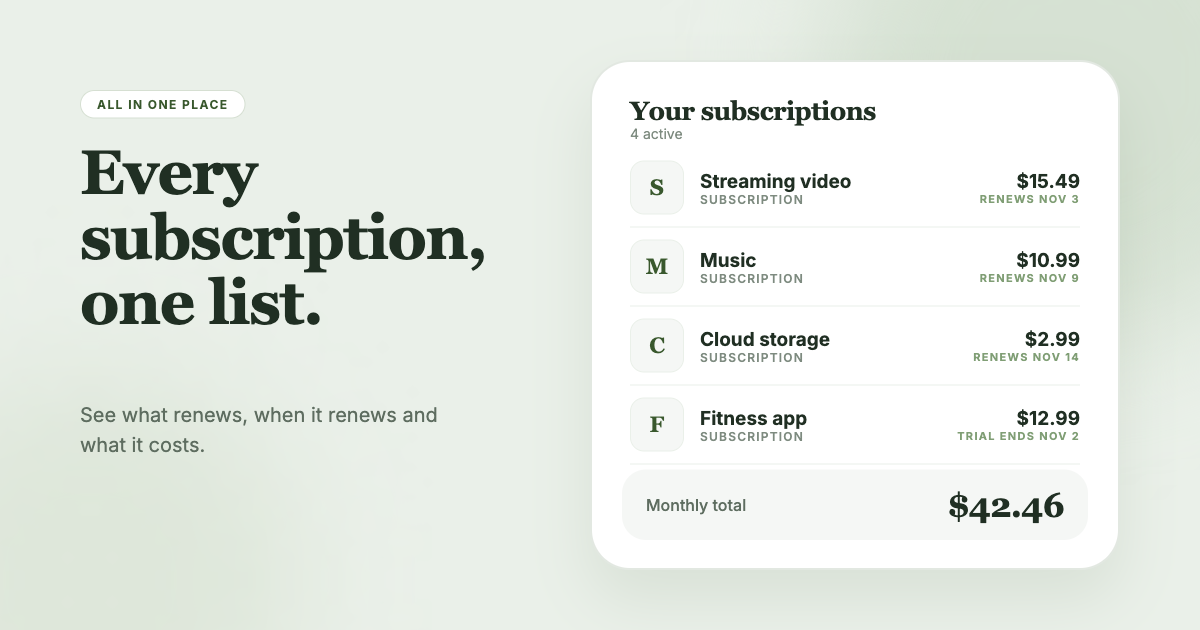
SubSweeper does that search for you. It scans your email receipts (read-only) to surface active subscriptions, free trials and upcoming renewals in one dashboard, including the ones that bill through Google Play. It shows a monthly total, sends reminders before charges, and helps you cancel what you no longer use.