How to Cancel Illustrator Subscription 2026
- Aidar Karimov
- Jan 7
- 3 min read

If you’re looking for how to cancel Illustrator subscription, you’re probably trying to avoid another charge—or escape an unexpected cancellation fee. Adobe Illustrator is powerful, but not everyone needs it long term. Many users subscribe for a short project and forget about auto-renewal, only to get billed again.
The good news: you can cancel Illustrator cleanly if you follow the right steps and timing. In this guide, you’ll find step-by-step instructions, smart timing tips to avoid fees, and what happens after cancellation.
Managing design tools, trials, and SaaS subscriptions can get messy fast. If you want one dashboard to track everything, SubSweeper helps you monitor and manage subscriptions automatically.
Before You Cancel Illustrator Subscription
Before clicking “Cancel,” check these important details:
Plan type matters
Monthly plan (cancel anytime)
Annual plan paid monthly (early termination fee may apply)
Annual prepaid plan (no refund after 14 days)
14-day refund window
Cancel within 14 days → full refund
After 14 days → cancellation fee may apply
Alternative options
Switch to a cheaper plan
Pause your subscription
Downgrade to Photography or single-app plans
👉 Tip: Use SubSweeper to track renewal dates so you cancel before Adobe charges you again.
How to Cancel Illustrator Subscription (Best Method)
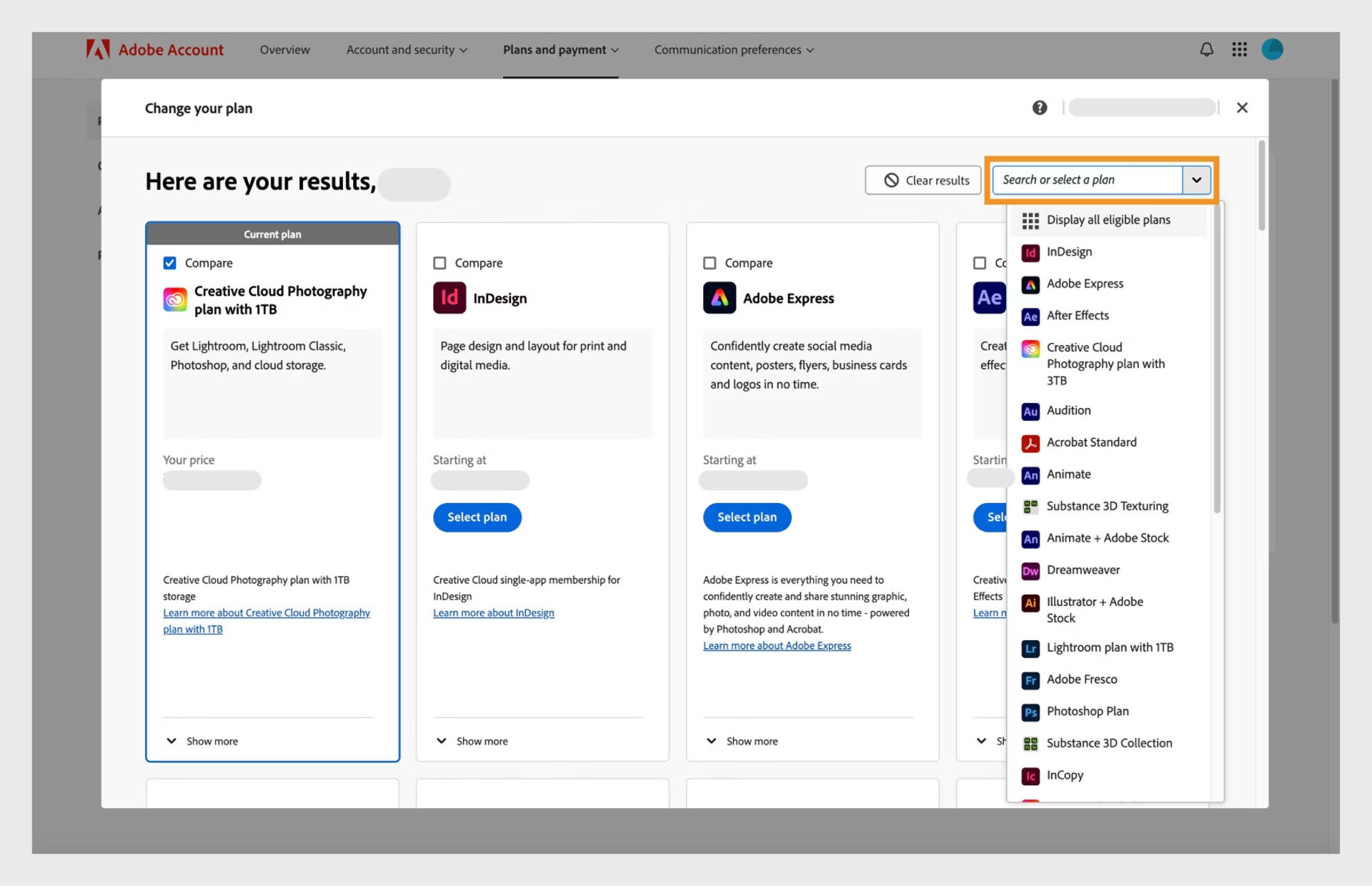
Cancel via Adobe Account (Recommended)
Go to account.adobe.com
Sign in with your Adobe ID
Click Plans
Find Illustrator under Your plans
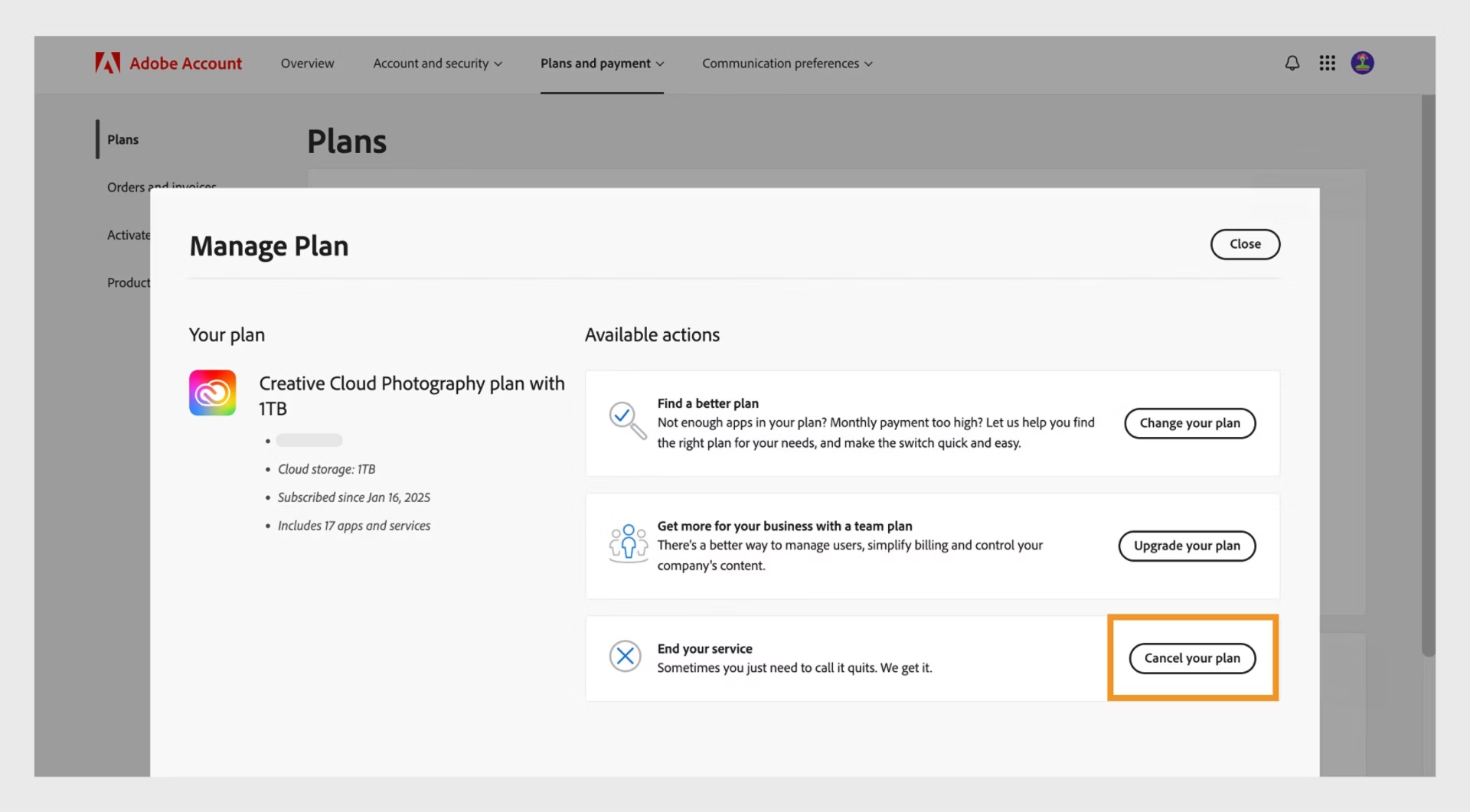
Click Manage plan
Select Cancel your plan
Review fees or refunds shown on screen
Confirm cancellation
⚠️ Warning: Adobe may offer discounts to keep you. Decline all offers if you want a full cancellation.
Alternative Cancellation Methods
Cancel Illustrator on Mobile
Adobe subscriptions cannot be canceled through the Illustrator app
You must use a web browser (desktop or mobile)
Cancel via App Store (iOS)
If you subscribed through Apple:
Open Settings → Apple ID
Tap Subscriptions
Select Adobe Illustrator
Tap Cancel Subscription
Cancel via Google Play (Android)
If billed through Google:
Open Google Play Store
Tap profile → Payments & subscriptions
Open Subscriptions
Cancel Illustrator
Cancel via Adobe Support
If cancellation fails:
Use Adobe live chat
Ask support to cancel without retention offers
Save chat transcripts
What Happens After Cancellation
After canceling Illustrator:
Access continues until the end of the billing period
Illustrator stops working after that date
Your Adobe account remains active
Files are not deleted, but cloud storage may be limited
You can resubscribe anytime
👉 Track canceled and active tools easily in the SubSweeper dashboard.
Troubleshooting Common Issues
High cancellation fee
Happens with annual plans paid monthly
Best workaround: downgrade plan first, then cancel later
Cancel button missing
Subscription may be managed by Apple or Google
Check the platform that billed you
Still getting charged
Verify cancellation confirmation email
Check bank statements
Contact Adobe support immediately
Best Way to Cancel Illustrator (Pro Tips)
Cancel within 14 days for a full refund
If past 14 days, downgrade first, then cancel later
Avoid phone cancellations—use chat or account page
Take screenshots of every step
Conclusion
Canceling Illustrator the right way can save you money, time, and frustration. The key is knowing your plan type, canceling at the right moment, and avoiding early termination fees.
If you juggle multiple tools like Adobe, Canva, Figma, or other SaaS subscriptions, it’s easy to lose track. SubSweeper helps you monitor, cancel, and manage subscriptions in one place—no more surprise charges.
👉 Sign up for SubSweeper and take control of your subscriptions today.
Comments